People
People brings your favourites, your colleagues, the company phonebook, your own contacts and your customers together, with one search box. The tabs are Favourites, Colleagues, Company, My contacts and Customers.
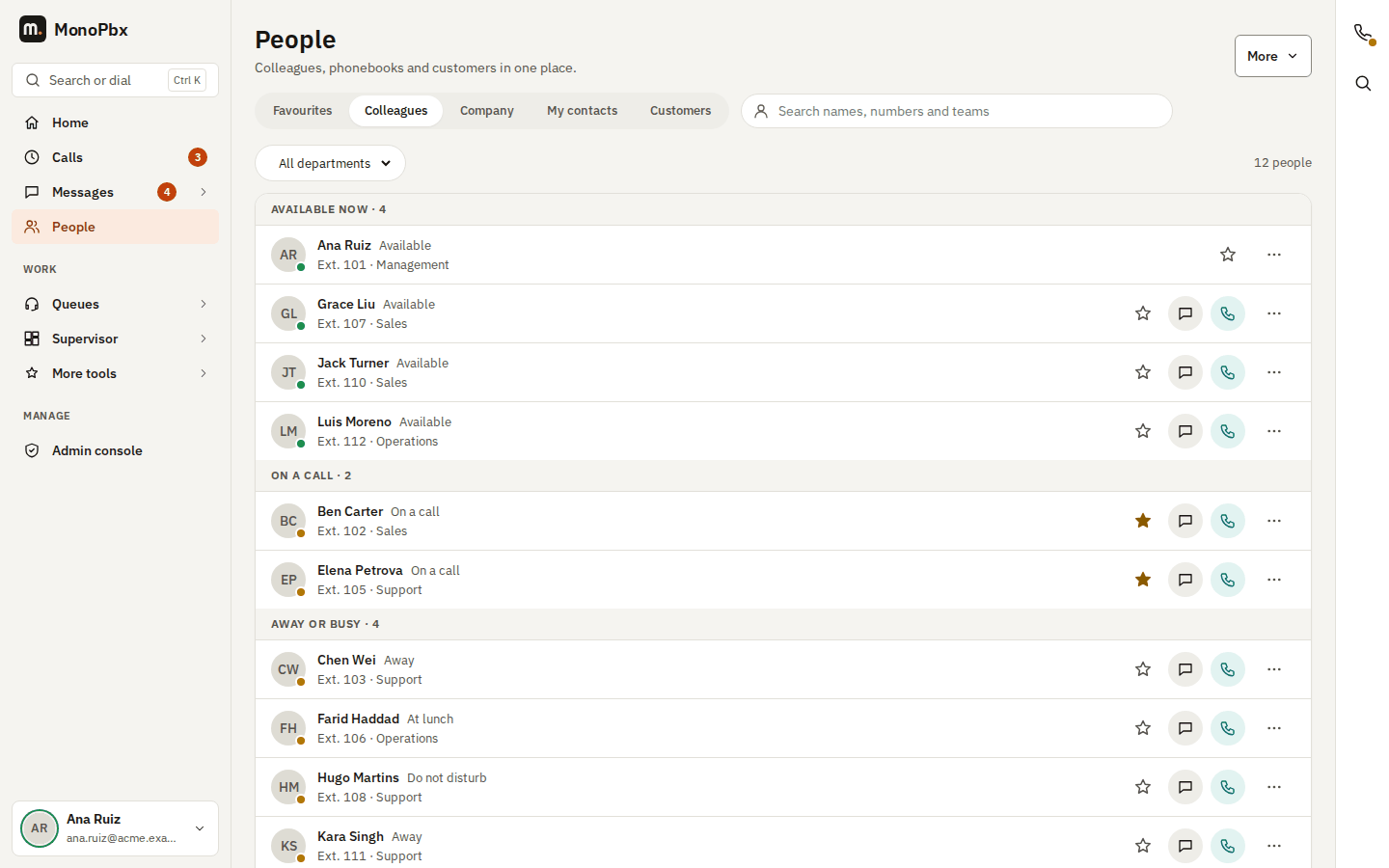
Colleagues
Everyone in your company directory, grouped by live presence: Available now, On a call, Away or busy and Offline. Your favourites come first in each group.
- The search box filters by name, extension, job title, department or e-mail as you type. All departments narrows the list.
- Each row shows the extension, job title, department and a colleague's custom status when they set one. The company's catch-all Default department is not repeated under every name.
- Buttons: the star marks a favourite (shown on Home, in the Favourites tab and in the apps), the chat button opens a one-to-one chat, the green call button calls the extension with the browser phone. The ... menu holds Call mobile (when you may see the number), Ring my phone first and E-mail.
- On a phone a row keeps only the green call button and ...; Chat and Add to favourites move into ....
- Click or tap a name or photo to open the colleague's details: extension, mobile, e-mail, job title, department and status, with Call, Chat and the favourite switch. On a wide screen the details open beside the list; on a phone they fill the screen.
Favourites
The colleagues you starred, in your own order, each with their live presence. Star someone in Colleagues (or in their details) to add them; a new favourite goes to the end of the list.
To change the order:
- Drag the handle at the start of a row (the six dots) up or down.
- With the keyboard, move to a row's handle with Tab and press the up or down arrow key. Screen readers announce the new position.
- Or open the row's ... menu and choose Move up or Move down.
The order is saved at once and is the same in the MonoPhone app and on your other devices. You can reorder only the whole list: while you search, the handles are hidden. If your favourites changed meanwhile on another device, the new order is not saved: the page shows your saved list again so you can try once more.
See Directory and team for presence, mobile numbers and job titles.
Company and My contacts
Company is the company phonebook; My contacts are your private contacts, which only you see. The search box searches the book you are in. An empty book shows Add contact and Import CSV buttons in the middle of the page. Add contact, Import CSV and Export work as before; Company can be edited only by roles that may change the phonebook.
Customers
Customers opens the customer timeline: type a phone number to see every call, message and open item of that customer.
Team board
People who control office hours (supervisors) find Team board and office hours in the More menu: the colleagues' presence with the office-hours override of the schedules they control.
Old addresses
/directory and /team open People > Colleagues, /contacts opens People > Company (a search in the link is kept) and /customers opens People > Customers (with the number in the link).