Messages
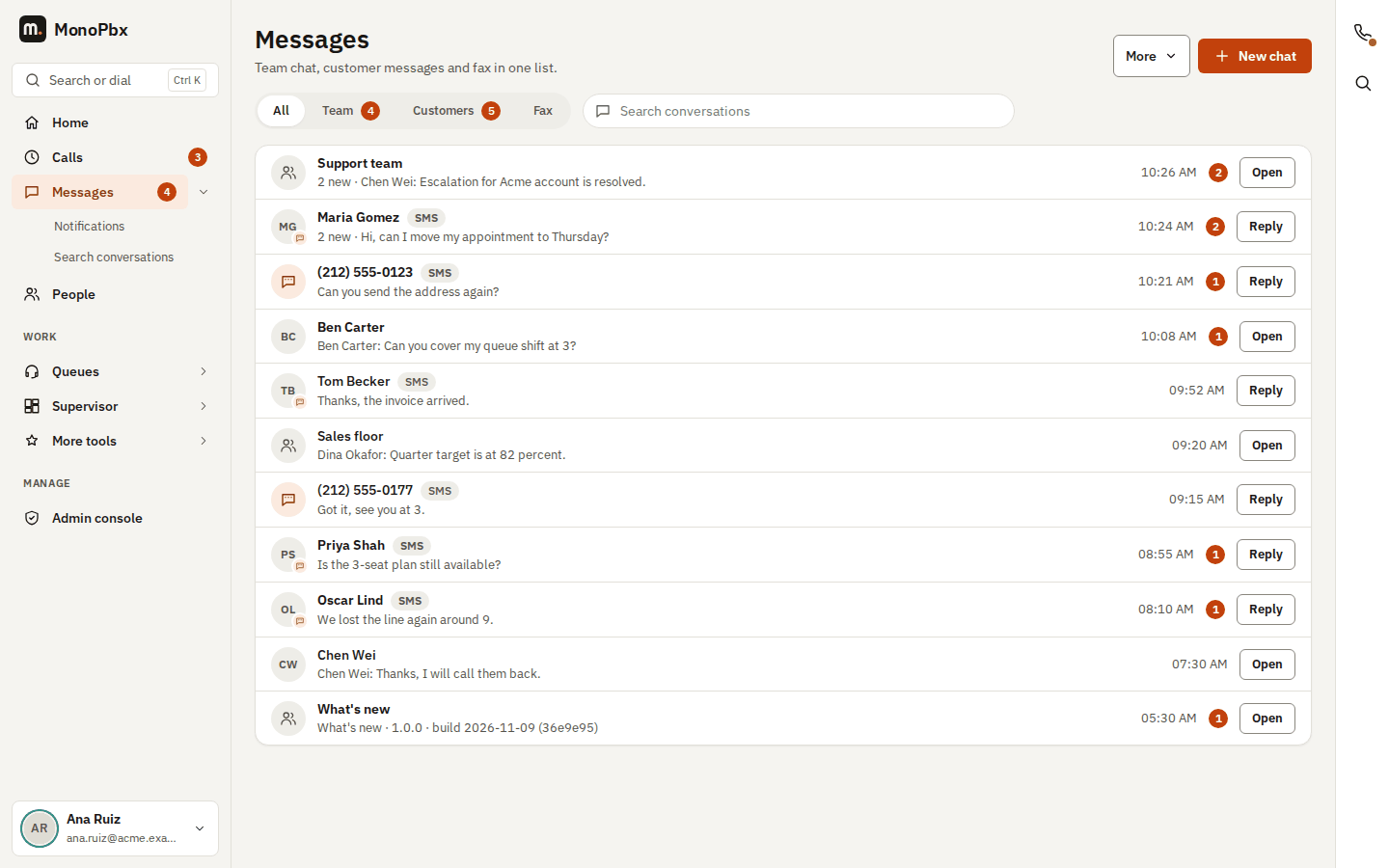
Messages is one list of your conversations: team chat with colleagues, customer conversations (SMS, WhatsApp, live chat and the other channels of the inbox) and fax. The newest conversation is at the top; a number shows how many messages you have not read.
Find a conversation
- All, Team, Customers and Fax choose what the list shows. The number on Team and Customers counts the unread messages there.
- Search conversations filters by name, number or the text of the last message as you type.
- A customer row shows its channel (SMS, WhatsApp, Telegram, live chat…) next to the name.
Open a conversation
Click a row, or its button: Open for a team chat or a fax, Reply for a customer. The conversation opens in its full view, with everything it had before:
| Conversation | Opens | Guide |
|---|---|---|
| Team chat | The chat with your list of chats, threads, files, calls and reactions | Team chat |
| Customer (inbox) | The inbox conversation with assignment, templates, translation and AI hand-over | — |
| SMS | The text-message conversation with its pictures and the reply box | — |
| Fax | Sending a fax and the list of sent and received faxes | — |
On a wide screen the newest customer conversation opens by itself, so the right side is never empty. Each customer row has one channel icon and one badge: the unread count when there is one, otherwise the status; the channel and the department are shown as plain text under the name.
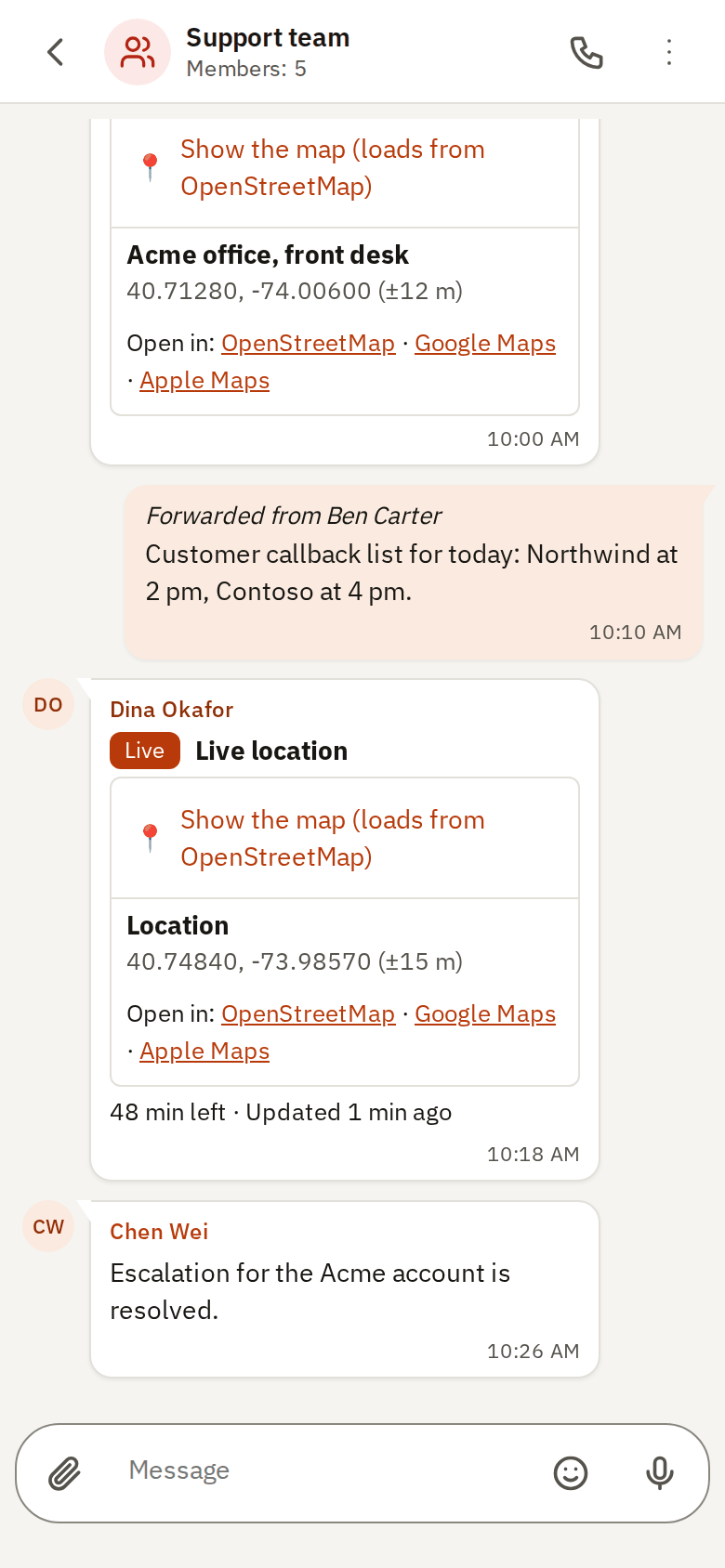
All conversation views look and work the same way, like a messaging app: a compact header (back arrow, name, one line with the members, the status or the channel, a call button where there is one, and a ⋮ menu with the other actions), the messages in bubbles with the time and the delivery state inside, and the message box at the bottom. In a customer conversation Take stays in the header and Assign, Transfer, Translate, Archive and the rest are in the ⋮ menu; the quick replies scroll sideways above the message box. On a phone the list and the open conversation are separate full-screen views: the page title and the bottom tab bar hide while a conversation is open, and the message box stays above the keyboard. In a text (SMS) conversation the number of messages a long text goes out as ("2 SMS") appears under the box once it needs more than one, and the number of characters left appears only near the limit.
New chat at the top right starts a chat with a colleague or a group. The More menu opens the team chat, the customer inbox, the SMS page and Send a fax directly.
Text and customer conversations in the app
In the MonoPhone app, text messages and customer conversations look like team chats: bubbles grouped by sender, the time and delivery ticks inside each bubble, day chips, the button back to the newest message, and the same message box (see Team chat). Long press a message to copy it.
- Text messages: once your text needs more than one SMS, the app says under the box how many it goes out as (for example "2 SMS"; a text that fits in one SMS shows nothing); a text with characters outside the basic SMS alphabet, such as emoji or Cyrillic, needs more parts. Near the limit it also shows how many characters are left.
- Long replies to customers: a reply in a WhatsApp, Messenger, Instagram or other channel conversation can be as long as you need. When it is longer than the channel allows in one message (WhatsApp 4096 characters, Messenger 2000), it is sent as several messages in order, cut between paragraphs or words, and the app tells you how many it became.
- WhatsApp: a long reply goes out as several WhatsApp messages; the app says how many before you send.
Pictures and files in text messages
A text message with attachments (an MMS) shows its files under the text, in the web console and in the MonoPhone app. A picture appears as a thumbnail you can open full size; any other file (a PDF, a sound, a contact card) appears as a line with its type and size that downloads it, or in the app opens the share sheet. A message whose files are still being fetched from the provider shows its text first and the files a moment later. Files you send with a message stay with that message.
Who sees what
Everyone has team chat. Customer conversations and SMS need a role that may read messages; fax needs a role that may read or send faxes. A part you may not see is not offered. If one part cannot be loaded, the list shows the others and says so.
Old addresses
/chat, /inbox, /sms and /fax still work and open the matching conversation view under Messages, with the same chat, conversation or room they named.