Calls
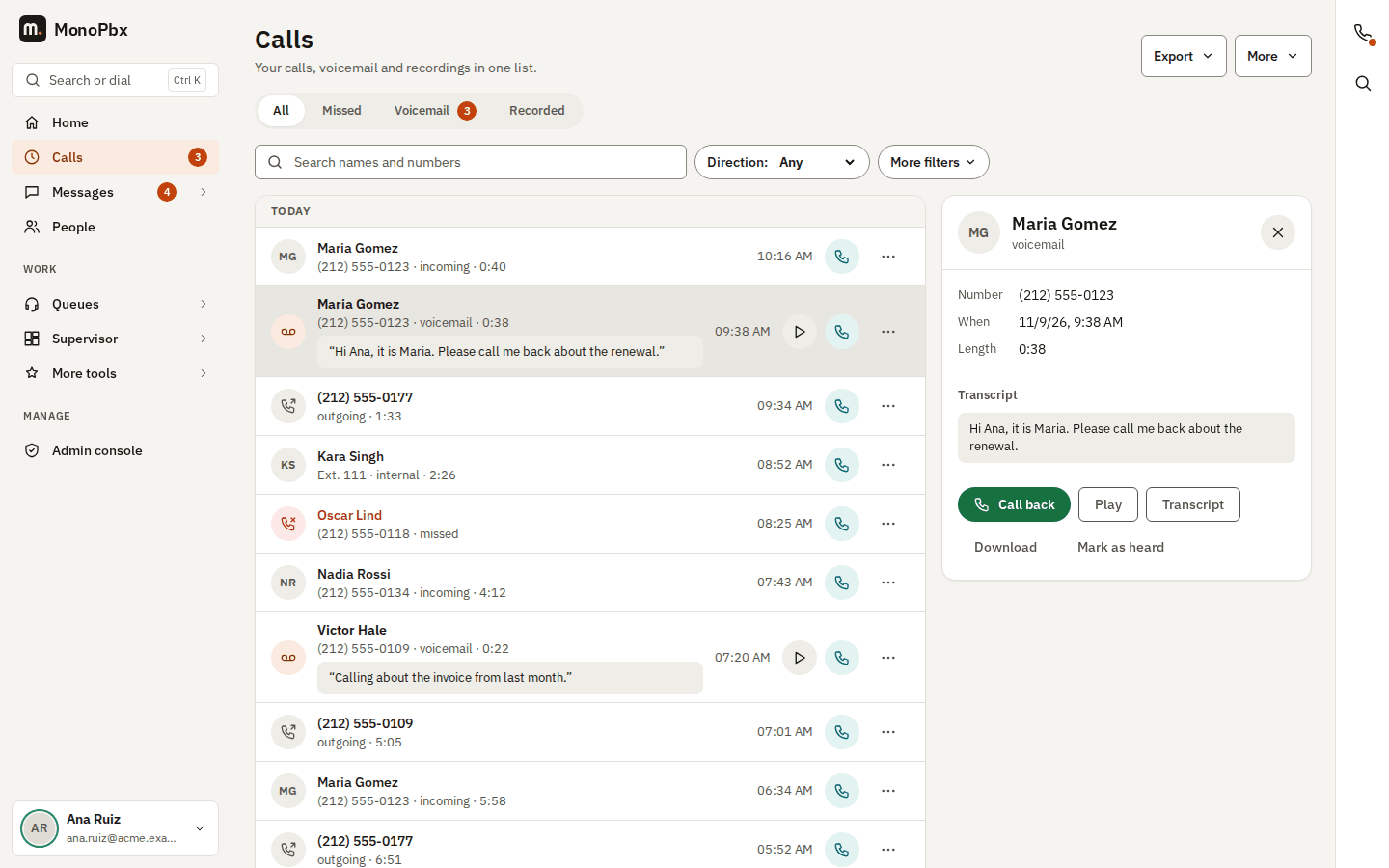
Calls is one list of your calls, your voicemail and your recorded calls, newest first and grouped by day (Today, Yesterday, then the date).
Find a call
- The buttons above the list choose what it shows: All (calls and voicemail), Missed, Voicemail (with the number of new messages) or Recorded.
- Search names and numbers filters as you type. A number matches however you type it (
212 555 0123,+12125550123); in voicemail the transcript is searched too. - More filters opens the rest of the filter bar: Direction (incoming, outgoing, internal), From and To day, Number or extension and Tag. A filter you set is shown in the address bar, so you can bookmark or share the filtered list, and Clear filters resets everything.
- Show older at the bottom loads earlier calls.
Each row shows the name first, then the number (formatted for your country, Ext. 106 for an extension), what happened (incoming, outgoing, missed, voicemail…) and the length. A missed call is in red. New voicemail is in bold, with the first line of its transcript under the name.
Row buttons
| Button | What it does |
|---|---|
| Call back (green phone) | Calls the number with the browser phone, or rings your own phone first when the browser phone is not ready. |
| Play | Plays the voicemail or the recording in the details panel. Playing a new voicemail marks it as heard. |
| ... | Details, Transcript, Download (Save recording on a recorded call), Mark as heard (voicemail), Open in call history (when your role may read the call history), Add contact, Block (refuses the number for your own calls) and Block for everyone (for roles that may change the dial plan), Create Jira issue (when your company has set up Jira) and Delete (a voicemail message in a mailbox you own or supervise, or a recording when your role may delete recordings). |
The Export menu at the top right has Export this list (CSV), which saves the rows you see, and, for roles that may read the call history, Full history export, which opens the advanced search with CSV, XLSX and PDF.
Click a row to open its details panel at the side (at the bottom of the screen on a phone): the number, the date and time, the length, the time waited in a queue, the line it came in on, the AI summary and whether it was recorded, with the player and the transcript.
Opening Calls counts your missed calls as seen, so the number next to Calls in the sidebar clears.
Who sees what
- Every user sees their own calls, the voicemail of their own mailbox and of the shared mailboxes they belong to, and their recorded calls when the company lets people hear their own recordings.
- When personal recordings are switched off, people allowed to read the company's recordings see those instead.
More tools
The More menu at the top right keeps the full tools one click away:
| Item | What it is |
|---|---|
| Advanced search and export | The full call history with the shared filter bar (direction, result, dates, caller, callee, outcome code, notes, AI summary; the state is kept in the address), one Export menu (CSV, XLSX, PDF), notes, your blocked numbers, the legs of a call and the Jira issue button. For roles that may read the call history. |
| Voicemail boxes | Your mailboxes and shared mailboxes with the new, old and saved folders, Take and Give back for shared messages, and delete. See Voicemail. |
| All recordings | The recordings browser: transcript search, legal hold and the access log, for the roles that have them. |
| Voicemail greeting and settings | Your greetings and PIN. |
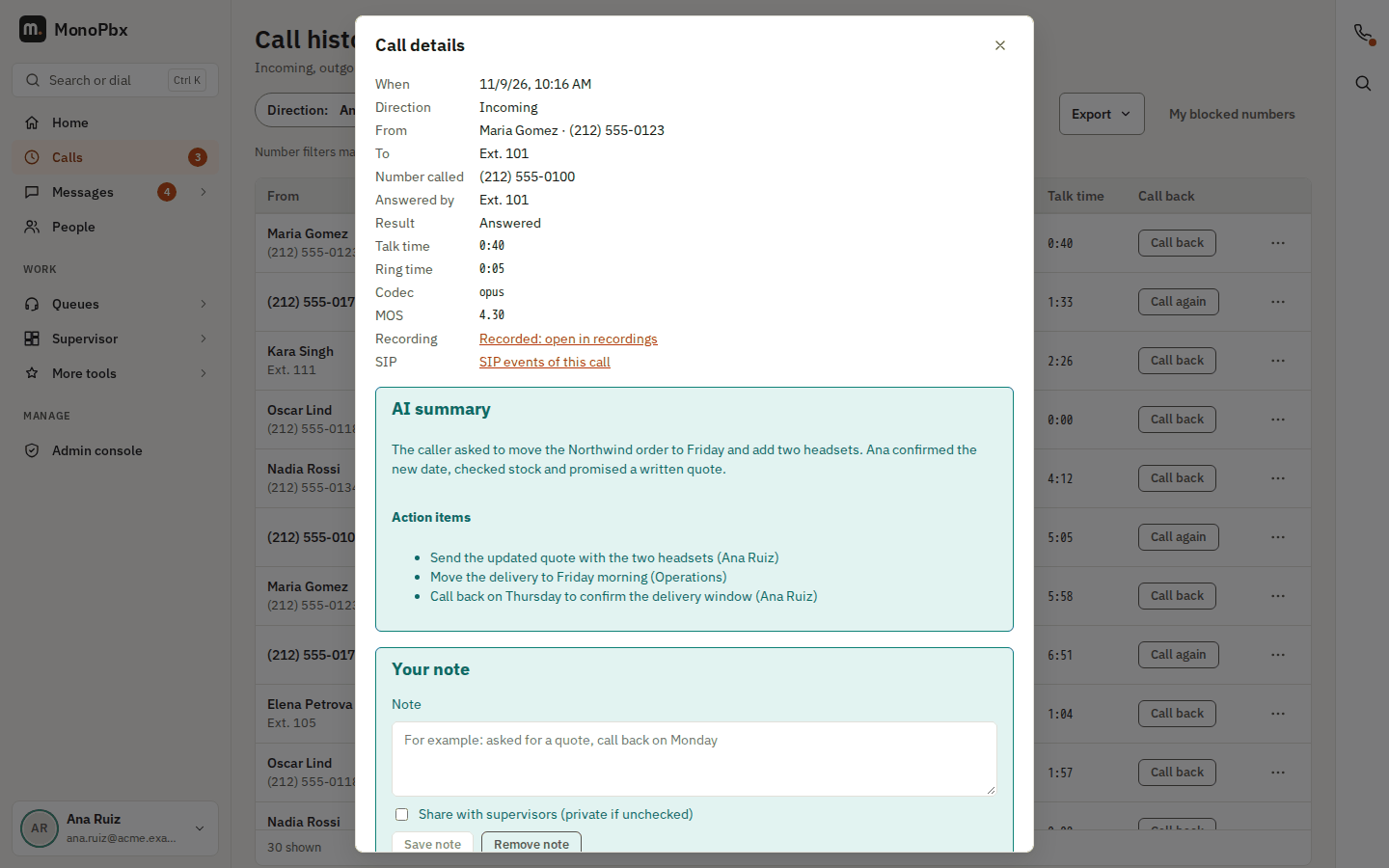
In Advanced search and export, Details of a call (in the row's ... menu) shows everything about it, including the AI summary and the action items found in its transcript.
Old addresses
Bookmarks and links to the earlier pages still work: /history opens Calls, /voicemail opens Calls > Voicemail and /recordings opens Calls > Recorded. A link to one call (/history?call_id=..., from reports and logs) opens that call's details.