Account security
Account security is in Me (your photo at the bottom of the sidebar), and also in Settings > Privacy and security > Sign-in and security. It has everything that protects your sign-in, one section at a time.
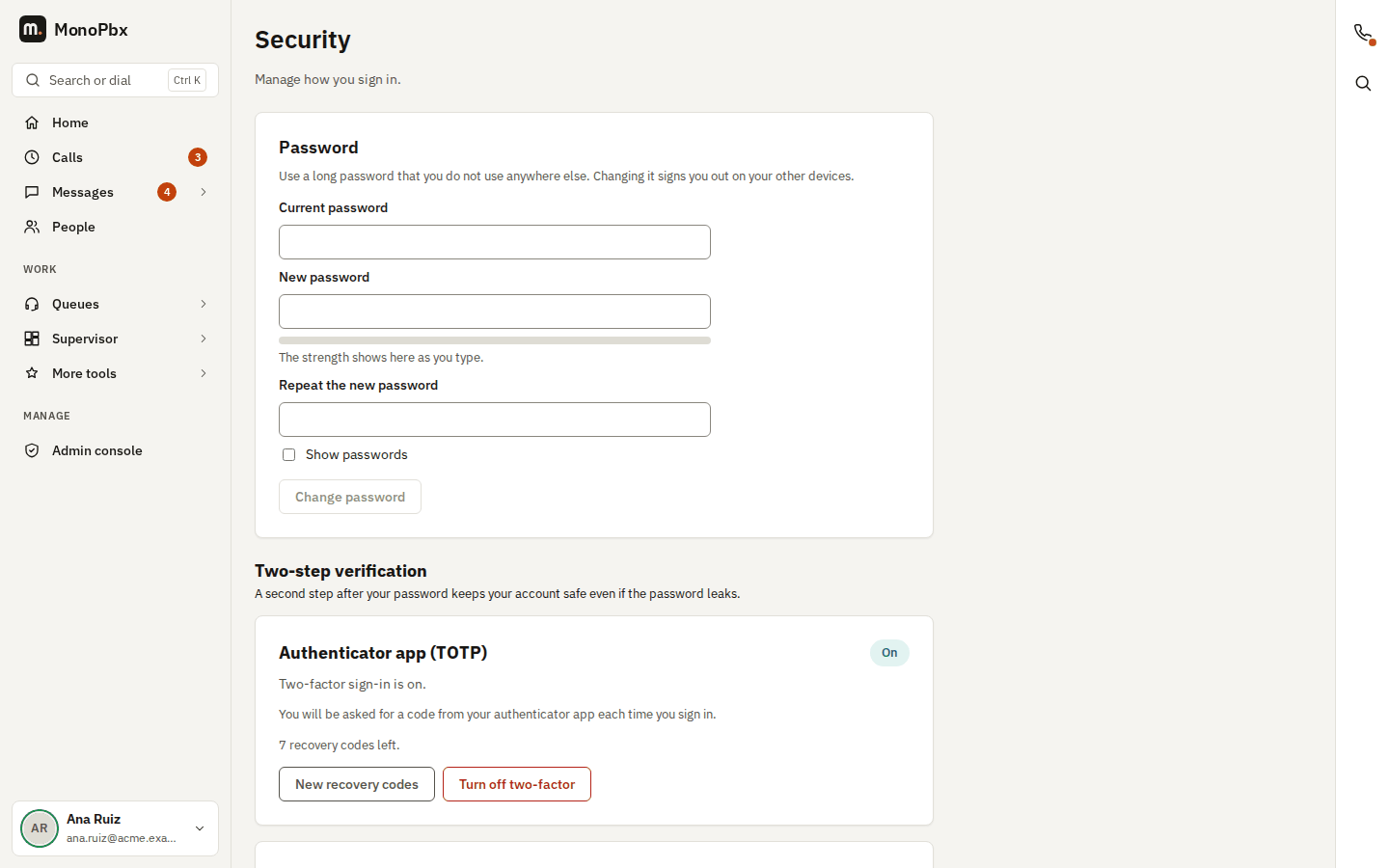
Password
Enter your current password, then the new one twice. A strength bar under the new password gives a quick hint while you type; your company's password rules decide what is accepted, and the page lists any rule the new password misses. Turn on Show passwords to check what you typed. After a change you are signed out on your other devices.
Use a long password that you do not use anywhere else. A password manager helps.
Two-step verification
With an authenticator app, a code that changes every 30 seconds is asked for after your password. The section shows whether it is On or Off.
Turn it on
- Choose Set up an authenticator app and confirm with your current password.
- Scan the QR code with an authenticator app on your phone. If you cannot scan, type the key shown under the code into the app.
- Enter the 6-digit code the app shows. Two-step verification is on only after this code is accepted.
- Save your recovery codes: copy them, download them as a text file or print them. Each code signs you in once if you lose your phone. They are shown only now.
Manage it
- New recovery codes replaces the old set. Confirm with your password.
- Turn off two-factor needs your password and a code from the app (or a recovery code), and signs you out on your other devices. If your company requires two-step verification, it cannot be turned off and the page says so.
- If you lose your phone and your recovery codes, ask your administrator to reset it.
Passkeys
A passkey lets you sign in with your fingerprint, your face or your device's screen lock instead of typing a code. Your computer, phone or a security key keeps the passkey; MonoPbx stores only its public half, so nobody can steal it from the server.
Add a passkey. Open Account security, choose Add a passkey, enter your current password, name the passkey (for example "Work laptop") and confirm with your fingerprint, face, PIN or security key. You can add several passkeys, up to 20, and rename or delete them there. Adding and deleting a passkey asks for your password again.
Use it as your second factor. After you enter your e-mail and password, a passkey replaces the code from the authenticator app: choose Use a passkey and confirm on your device. If you have both an authenticator app and a passkey, the sign-in page offers both, and a recovery code always works. If your company requires two-factor sign-in, a passkey satisfies it, so you do not need an authenticator app.
Sign in with a passkey alone. On the sign-in page choose More sign-in options, then Sign in with a passkey (the options open by themselves if you signed in with a passkey last time on this device). You type no e-mail and no password: your device offers your passkeys for this web address, and confirming with your fingerprint, face or PIN signs you in. A passkey always checks that it is really you, so this counts as two factors. Your administrator can switch this off for the company; the button then does not appear (nor More sign-in options, unless single sign-on is offered), and you use the password with a passkey or code instead.
One web address, one set of passkeys. A passkey works only on the web address where you created it, for example acme.pbx.example.com or your company's own domain. If your company changes its web address, the old passkeys stop working: sign in with your password and an authenticator code or a recovery code, then add the passkeys again.
Lost your device? Sign in with a recovery code or your authenticator app, then delete the lost passkey on Account security. If you have neither, ask your administrator to remove your passkeys; you then sign in with your password and add new ones. The mobile app (MonoPhone) does not offer passkeys yet: it asks for an authenticator code or a recovery code.
Sessions
Your sessions lists where your account is signed in: the browser or app, when it signed in, and, for an app set up by an administrator's code, who set it up. The session you are using now is marked This browser. End any session you do not recognise with End, or choose End other sessions to sign out everywhere except here.
Recent sign-ins
Recent sign-ins lists the attempts to sign in to your account, newest first: when, what happened (signed in, wrong password, wrong code, blocked after too many attempts, signed out), how (password, password and authenticator code, recovery code, single sign-on, set-up code of a phone app), the address and country it came from, and the browser or app. Your current session is marked This session. The list keeps the last 180 days, at most 200 entries; choose Show more to page back.
A successful sign-in from a country or a device your account had not used before is marked Unusual. If you do not recognise a sign-in, choose This wasn't me: every other session of your account ends at once, and the page asks you to change your password with the Password card. The report is recorded in your company's audit log.
The page also lists your widget tokens, your sign-in alerts and a link to your devices.
Keyboard and screen readers
Every field has a label, errors are announced as they appear, and the sections can be reached with the heading shortcuts of your screen reader. On a phone the sections stack in one column.