Add users, extensions and phones
After the first run, this is the order that gets a person talking on a phone. Every step is in the admin console.
1. Invite the user
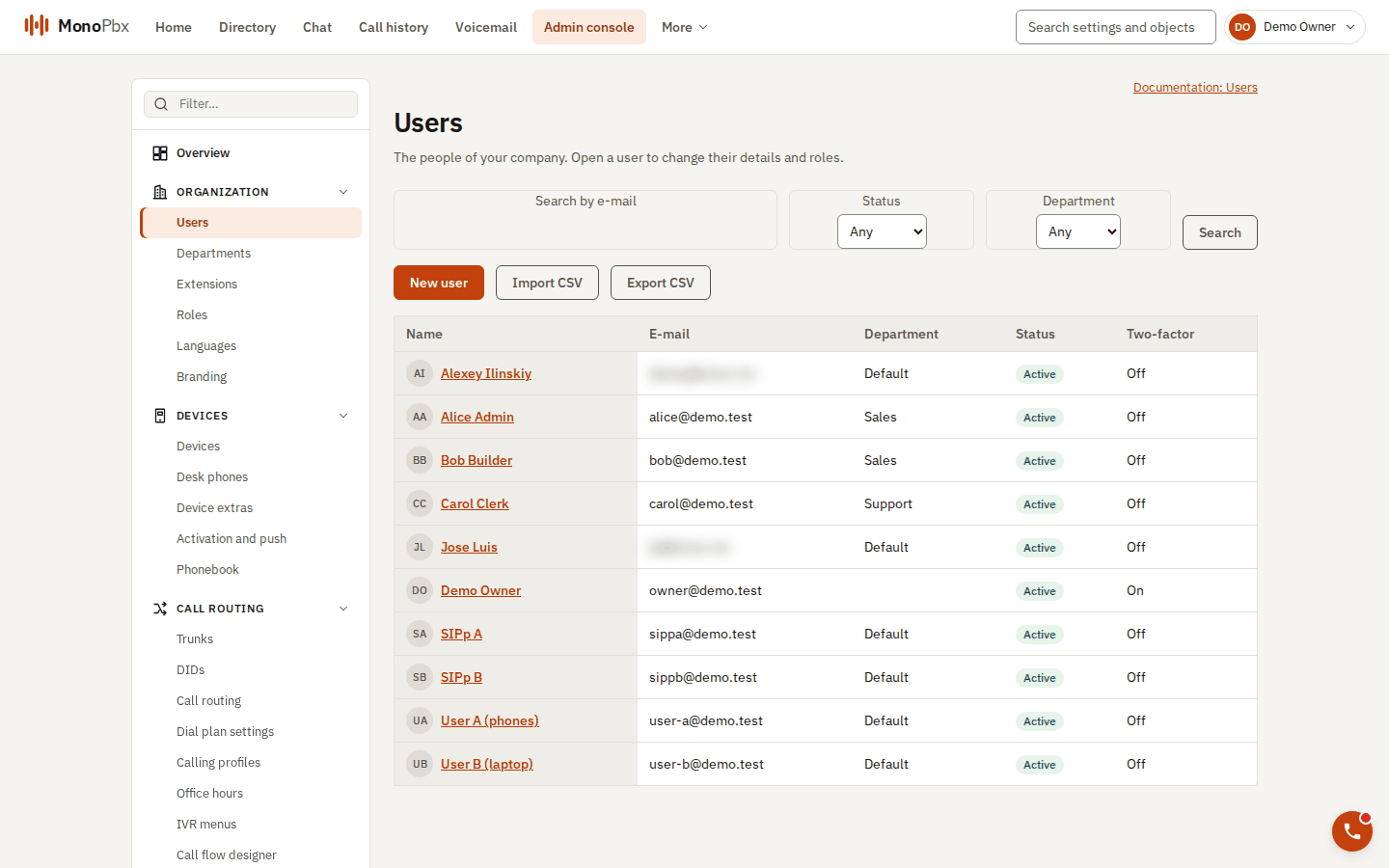
The Users page lists everyone in the company (e-mail addresses of other domains are blurred).
Under Admin, Users, add the person with an e-mail address and a role. They receive an e-mail with a one-time link to choose their own password. No password is ever sent by e-mail. See Users, departments and roles.
2. Give them an extension
An extension is the number others dial. A user has at most one. Create it under Admin, Extensions with kind user and the person as owner. The extension belongs to the department of its owner. See Extensions and devices.
3. Connect a phone
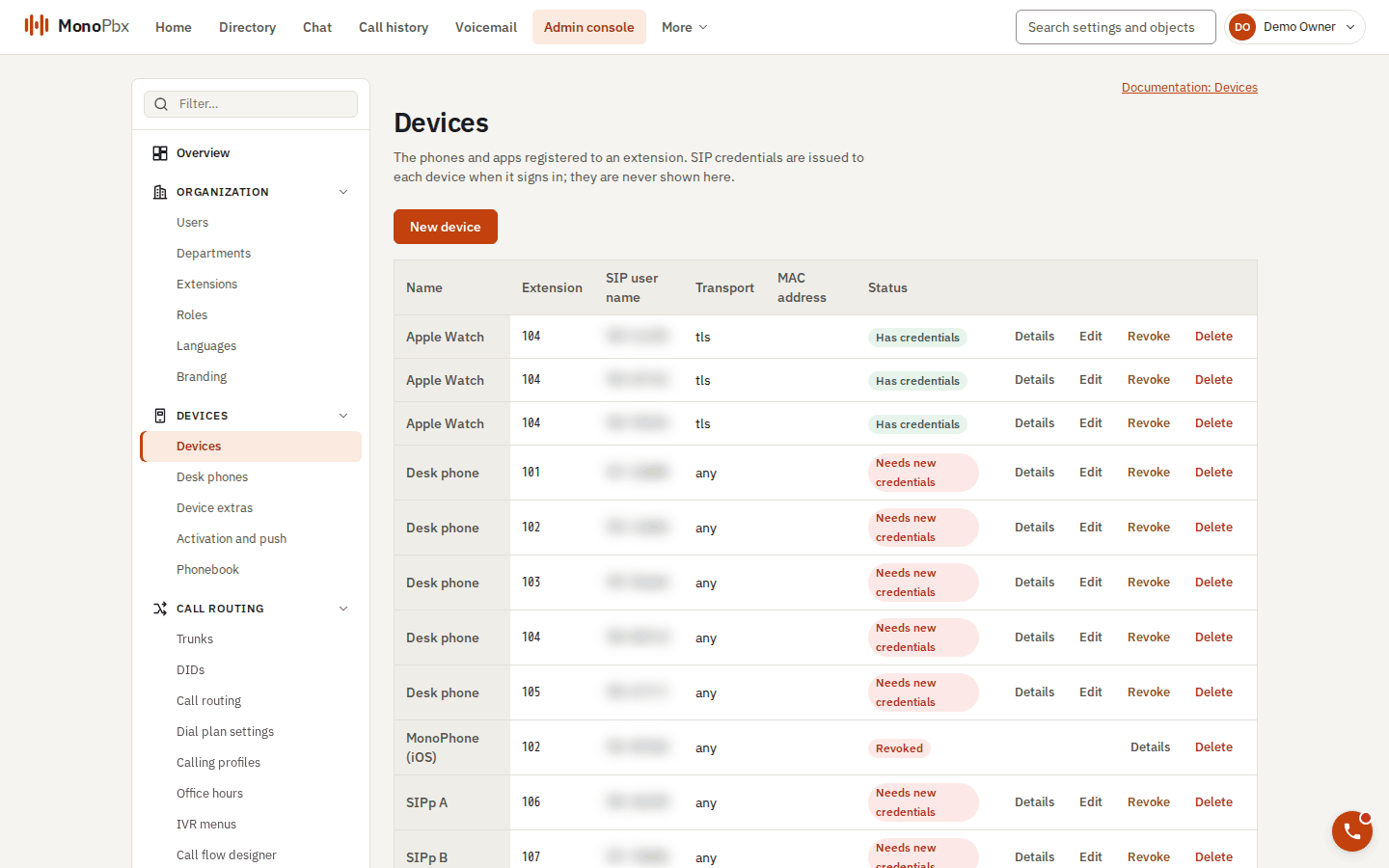
The Devices page shows each phone or app with its extension and credential status.
Every phone, browser or app registers with its own SIP credentials, never with the extension number and a shared password. Pick the way that fits the device.
| Device | How it gets its settings |
|---|---|
| Browser | Nothing to do. When the user signs in to the web client, the browser phone creates its device and registers by itself. |
| MonoPhone app (Android, iOS, desktop) | A QR code or link from the web client, see below. |
| Desk phone (Yealink, Fanvil, Snom, Grandstream) | Automatic provisioning by MAC address, see Desk phone provisioning. |
| Any other SIP phone | Create a device on the extension; the SIP user name and password are shown once. Enter them in the phone. |
MonoPhone with a QR code
:::info Status The MonoPhone source is in the repository, but the apps are not yet published for download. The steps describe how onboarding works once you have a build. :::
- The user opens My devices in the web client, or an administrator opens the device of the extension, and creates an onboarding code. It is shown as a QR code and as a link.
- In the app, the user scans the code or pastes the link.
- The app trades the code for its own credentials and starts registering. No web sign-in is needed for calls.
The code works once, is bound to one device and is valid for 10 minutes. A new code voids the previous unused one. It holds the server address and the code, never a password. If scanning fails, the app says why: the code expired or was already used, the server is unreachable, it is not a MonoPbx server, or its certificate is not trusted. Create a new code and try again.
The invitation e-mail can also carry a sign-in link for the app. A phone set up with a code has the phone line only. It has no directory or settings until the user signs in, and then the same device is reused.
Check that the phone works
- In the web client, the dock shows that the phone is registered.
- On the phone, dial
*22. The PBX answers, hangs up and calls the same phone back with a short test call. See Feature codes. - In the app, Settings, Call readiness lists what could stop calls from ringing (notifications, battery limits, push) and how to fix each.
4. Make the first calls
Dial another extension. For outside calls you need a trunk and an outbound rule. To let outside callers reach a person, add an inbound rule for the number.
Common problems
- The phone does not register. The device may have been revoked or its credentials rotated. A SIP account that had too many wrong passwords is locked for a while; an administrator can lift the lock on the device. Create new credentials or a new onboarding code.
- Someone has too many devices. Only a few devices can be active at once per user. Revoke old ones in My devices.
- A user has no extension. Create the extension first; phones attach to an extension.