Supervisor features in the MonoPhone app
Selected people can supervise from the MonoPhone app on their phone, tablet or computer (macOS and Windows) without opening the web console. The app shows a Supervisor area only to a person who holds at least one supervisor permission through a role. Nobody else sees it, and the server checks the same permission on every request the area makes, so hiding a screen is never the only protection.
What the Supervisor area offers
| In the app | What it does | Permission it needs |
|---|---|---|
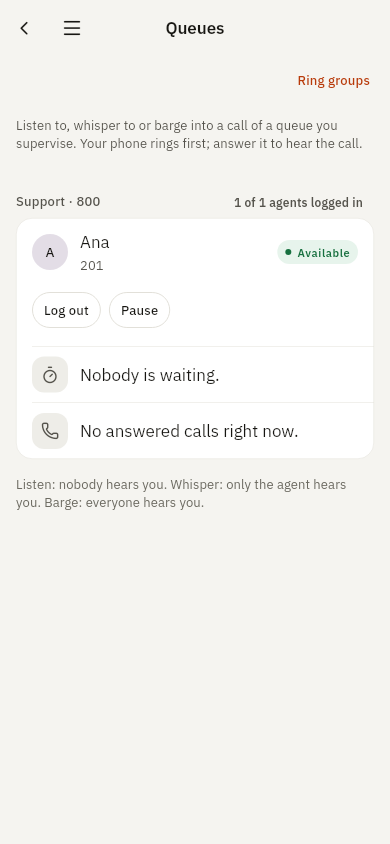
| Queues | The queues you supervise with the callers waiting, each agent and the agent's state (available, on a call, paused, wrap-up, logged out). Log an agent in to or out of its queues, pause and resume an agent. Listen, whisper or barge into an answered queue call: your own phone rings first and you hear the call once you answer. | queues:monitor for the department of the queue |
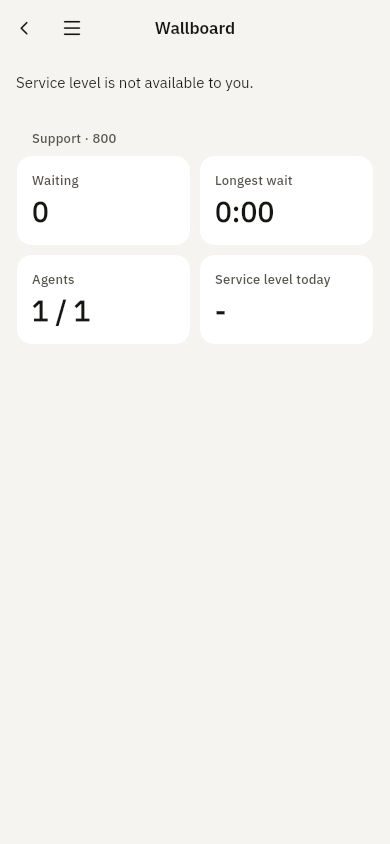
| Wallboard | Callers waiting, the longest wait, agents logged in and the day's service level (SLA) for every queue you supervise, coloured by how close the queue is to its target. | queues:monitor (the service level also needs reports:read) |
| Live calls | The live calls of the company or department: who is talking and for how long. Hang up or transfer one party of a stuck call. Emergency calls are listed but never controlled. | calls:control for the department of a party of the call |
| Team inboxes | The conversations of the inbox channels you reach (SMS, WhatsApp, Telegram, live chat), the ones nobody has taken first. Answer opens the thread, Assign gives it to a person, Close archives it. | messaging:write; the server narrows by the channel's department |
| Shared voicemail | The shared mailboxes (queue and ring group voicemail) you may read, each with its newest messages and whether each one is waiting or being handled. A member of a mailbox can take a message or give it back. Listening stays in the app: Calls, Voicemail, Shared mailboxes and greetings. | voicemail:read (taking and giving back need membership of the mailbox) |
| Alerts | A trunk went down, a dialer campaign finished, a dialer campaign was stopped at its end time: the last 7 days and the count of the last 24 hours. | trunks:read for trunk alerts, queues:read for campaign alerts (company-wide); you see only the kinds you hold |
| Recordings | The team's call recordings, newest first, and a search over what was said (the transcripts). Play a recording through a short-lived signed link. Every search is audited (transcript.search, never the words) and every playback is audited (recording.downloaded, with who asked). A recording under legal hold is marked. | recordings:read, for the department of a party of the call |
| Team control | Change a colleague's status (available, do not disturb, away and so on, each with its own forwarding rules), and force a schedule's office-hours state open or closed for an hour or hand it back to its weekly hours. | A status needs users:write for that person's department; an override needs calls:control for the schedule's department. A section you may not use is hidden. |
| Today | Reports at a glance: today's offered, answered and abandoned calls, answer rate, average wait and talk time, and the service level, with a line per queue. | reports:read (the service level needs it too) |
| Campaigns | Live progress of voice (dialer) and message campaigns: status, a progress bar, how many are done and (for messages) how many failed. With the control permission: Start, Pause, Resume and Stop (Stop asks first and cannot be undone). Without it the tab is view only. | Voice: view queues:read, control queues:write. Message: view messaging:read, control messaging:write. |
| Callbacks | The callbacks callers asked for. Reject a pending one, or approve a failed one to be tried again (the same toll-fraud rules as the engine's own attempts apply). | queues:write for the queue's department |
The area opens for a person who holds a permission of at least one tab (queues:monitor, calls:control, messaging:write, voicemail:read, recordings:read, reports:read, queues:read, queues:write, messaging:read, users:write or trunks:read), and shows only the tabs they hold a permission of. A plain User role holds none, so it never sees the area. A person with only calls:control sees Live calls (and the tabs their other permissions open); with only queues:monitor, Queues and Wallboard.
Finding your way around
The screens of the area are grouped in a menu:
- Live: Queues, Wallboard, Live calls and Alerts.
- Team: Team control, Recordings, Ring groups (the ring group statistics with each group's members, also reachable from the Queues screen with
queues:monitororreports:read), Team inboxes, Shared voicemail and Callbacks. - Insights: Today and Campaigns.
A group appears only when the person holds a permission for at least one of its screens. At the top the menu shows the person's photo and name and whether their supervisor permissions cover the whole company or only their departments; at the bottom, always visible, Back to Me returns to Me (you open Supervisor from Me > Work), as does the back arrow in the top bar. The screen that is open is highlighted, and its name is the title of the page. Counts the screens already know show as small badges: callers waiting next to Queues and Wallboard, alerts of the last 24 hours, callbacks to review, and calls missed today next to Today. A badge appears once its screen has been opened.
On a phone the menu opens with the menu button at the top left, or by swiping in from the left edge; the system back gesture closes it first. On a tablet or a desktop window the menu stays open at the side. A long menu has a search field under your name: type part of a screen's name to find it. A link to a screen of the area (for example from a home-screen widget) still opens that screen directly.
The screens look and work like the admin screens of the app (see How every screen works): the screen's name centred in the top bar, rows with a status pill, and the same colours. Green means a call or an agent who is available, amber an agent who is busy, paused or in wrap-up, or callers waiting, red a missed or abandoned call, a failure or the Hang up button.
- Queues lists each queue under its name with the number of agents logged in, then one row per agent with their state, the callers waiting, and the answered calls with Listen, Whisper and Barge.
- Wallboard and Today show their figures as tiles: two per row on a phone, three or four on a tablet. The tiles grow with the text size instead of cutting the numbers.
- Live calls, Recordings, Team inboxes and Campaigns show one card per item: the row with the people or the name, then its buttons.
Everything the app does is the same action as in the web console and is recorded in the audit log in the same way (supervisor.* for queue supervision, call.control_* for live calls), also when the server refuses it.
Reach: whole company or one department
Both permissions can be given for the whole company or for selected departments. A supervisor of Sales sees and acts on the queues of Sales and the calls that have a party in Sales, and nothing else. A call or a queue outside that reach is answered as if it did not exist. Logging an agent in or out changes all the queues of that agent, so it needs the permission for every one of them.
Preset roles
Every company has four preset roles. They are ordinary custom roles: change their permissions, rename them or delete them on the Roles page like any role you created. A company that already has a role with the same key keeps its own role.
| Role | For | Holds |
|---|---|---|
| Queue supervisor | The person who watches the live queues | Directory and contacts, users:read, extensions:read, queues:read, queues:monitor, calls:control, call_history:read, reports:read |
| Team lead | A team lead | Everything a Queue supervisor holds, plus recordings:read, voicemail:read, call_notes:read_team, messaging:read and messaging:write |
| Campaign supervisor | The person who follows outbound campaigns | Directory and contacts, queues:read, call_history:read, reports:read (no listening in, no call control) |
| Read-only manager | A manager who looks and never touches | Read permissions for users, departments, roles, extensions, devices, queues, ring groups, history, recordings, voicemail, reports, messaging, fax, call flows, trunks, dial plans and settings. No write permission, no queues:monitor, no calls:control |
Assign them on a user's page (Users, open the user, Assign role) for the whole company or for one department. The same rule as for every role applies: you can only hand out permissions you hold yourself.
Alerts by role
The server notices a trunk that stops answering (after it was up), a dialer campaign that runs out of contacts, and a dialer campaign stopped by its end time. It stores an alert for the Alerts tab and sends a push notification to the devices of the people who hold the kind's permission company-wide (a role given for one department only does not receive company-wide alerts). The push says that something happened and carries no detail: the Alerts tab shows what. Alerts are kept 30 days. Callback approvals need queues:write, which none of the four preset roles holds (it also lets a person change a queue's settings): give it through a custom role or a Department Admin or Manager role. A quota or licence alert, and a queue service-level alert, are not part of this release.
Who has the Supervisor area
- The Users page has an App features column: Supervisor for every person who holds a supervisor permission through a role (hover for the roles that give it), None for the others. The column lists the people your own
users:readreach allows. - The Roles page has the same column for roles: it shows which roles open the Supervisor area.
GET /app-features/usersreturns the same list for integrations.
Widgets and watches
A person who may supervise can put the Supervisor widget on the home screen (iPhone, iPad and Android) or the lock screen (iPhone), and get a Supervisor complication and glance on an Apple Watch and a tile and complication on a Wear OS watch. They show counts only: callers waiting and the longest wait, live calls, running campaigns and alerts of the last 24 hours. Tapping one opens the matching tab of the Supervisor area.
- Same permissions as the app. A section appears only when the person holds the permission of the matching tab. Without any supervisor permission the widget says the features are not available and shows no number; the watches show nothing.
- How they refresh. The widget asks the server by itself (
GET /me/supervisor-summary) every 15 minutes on iOS and about every 30 minutes on Android (the least those systems allow), and the app pushes fresh numbers whenever it runs or its permissions change. The watches get the numbers from the phone (Wear OS) or ask the server themselves (Apple Watch). When a role is taken away the numbers disappear at the next refresh. - Widget token. The widget uses the existing short-lived widget token (seven days, stored in the iOS Keychain or the Android Keystore, never in a plain file, revoked on sign-out). It is accepted by the summary, the person's own status switch and its own revocation, and by nothing else, and the server still applies the person's roles on every request. Every use is audited (
auth.widget_token_used). - Languages. The texts come from the app's language (nine locales), in the light or dark appearance of the device.
Changes apply at once
When you give someone a role, take one away, or change the permissions of a role they hold, the server tells that person's app straight away and the app reads its permissions again. The Supervisor area appears, or a tab disappears, within a moment: nobody has to sign out or restart the app. The app also reads its permissions again every time it reconnects to the server. An action the person tries just after losing a permission is refused by the server (403, MPBX-RBAC-FORBIDDEN), exactly as in the console. A running listen, whisper or barge ends when its supervisor loses queues:monitor for that queue.
Until the app has read its permissions (for example when it starts without a connection), the Supervisor area stays hidden rather than guessed. A phone set up with a QR code or link has no API session and does not show the area.
Limits
- Listen, whisper and barge work on answered queue calls. A call that is not a queue call is refused with
MPBX-SUP-NOT-QUEUE-CALL. - Supervision needs a signed-in user. An API key cannot listen in.
- The notice beep (whether the agent and the caller hear a short tone when a supervisor joins) is a company setting under Queues, not an app setting.