Messaging channels setup
The omnichannel inbox collects conversations from SMS, team chat, the website live chat, WhatsApp, Facebook Messenger and Telegram in one place. Each conversation is routed to a queue, ring group, extension or user. Instagram is not supported.
Before you start
- Public HTTPS. WhatsApp, Messenger, Telegram and the live chat widget call your PBX from the internet. Your PBX address must be reachable on port 443 with a certificate from a public certificate authority. Check from a phone on mobile data, not from inside your network. Self-signed certificates and private addresses do not work.
- A user with permission to manage channels.
- A queue, ring group, extension or user to receive new conversations. Without one, conversations wait in the shared inbox.
Telegram
- In Telegram, talk to @BotFather, create a bot and copy its token.
- In the web console open Admin > Channels, add a Telegram channel and paste the token. The token is checked with Telegram and then stored sealed; it is never shown again.
- The PBX registers its webhook with Telegram over your public HTTPS address.
- Send a message to the bot. It appears in the inbox.
Private chat text, photos, documents, audio, voice notes, videos and stickers become messages. Group chats and edits are ignored.
WhatsApp and Facebook Messenger (your own Meta app)
MonoPbx does not run a Meta app for you. You create one in your own Meta business account; that keeps the app, the phone number and the tokens under your control and avoids Meta's app review for this product. Messages are billed by Meta under your own terms.
Summary of the steps:
- Create a Business app at developers.facebook.com and keep it in development mode for your own staff and assets.
- Note the App ID and the App secret. The secret signs every webhook call; MonoPbx rejects calls that do not match.
- For WhatsApp, add the WhatsApp product, add your phone number and note the Phone number ID and the WhatsApp Business Account ID. Create a permanent system-user token; the 24-hour token on the setup page is for trials only.
- For Messenger, connect the Facebook Page you administer and create a page access token.
- In the MonoPbx channel form, paste the access token, the app secret and a verify token of your choice. Then register the webhook in Meta with
https://<your PBX address>/hooks/inbox/...(the address is shown on the channel page) and the same verify token.
The Channels page in the console lists these steps above the Meta credentials and links here. For WhatsApp, if you connected the channel with the Business Account ID, the agent can list your approved message templates from Meta instead of typing their names. Messenger contacts are shown by name when Meta lets the Page read the customer's profile; otherwise by their Meta id.
Each step is in the operator checklist. Keep the secret and tokens out of screenshots and chat messages.
Routing and staffing
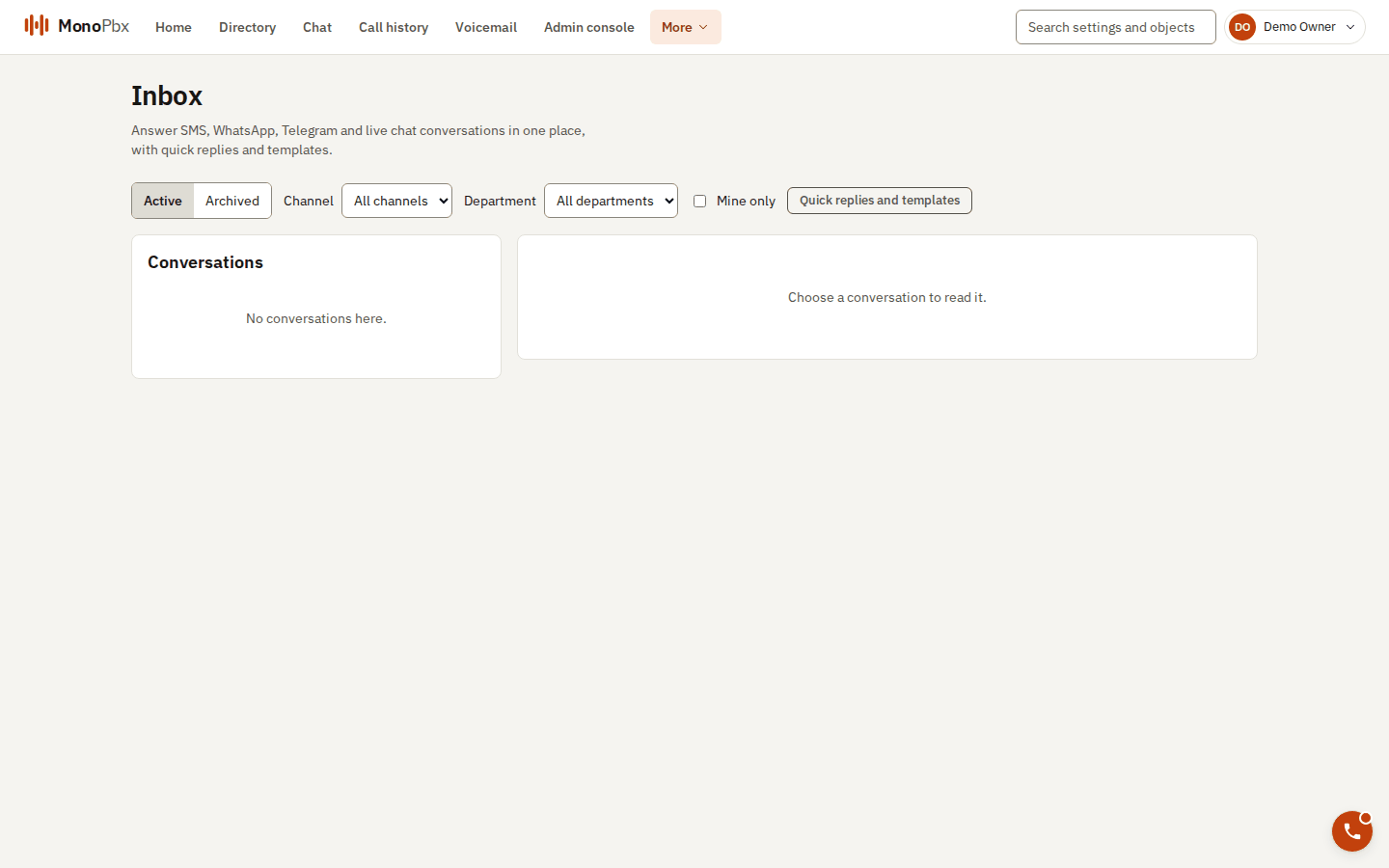
The shared Inbox where SMS, WhatsApp, Telegram and live chat conversations arrive.
Pick the route on the channel: a queue, ring group, extension or user. Agents see the conversation in the web inbox and the softphone. Quick replies and templates are available in both.