Licensing and activation
Two pages in the console look similar and do different jobs. The Licence page is about the licence of the installation. The Activation page is only about mobile push. Both are for the system administrator: they are install-wide and are not shown to company administrators.
What the licence does
- The metric is simultaneous calls (SC). Only calls on trunks (inbound or outbound, external) count. Calls between your own phones never count. Every feature is available in every plan. The licence can also carry user and company limits, and a plan can include a number of AI agent resolutions per month (shown in Admin > AI analytics); they are shown on the Licence page, and creating a user or company over the limit is refused with a message that points to the Licence page.
- A licence is activated first. The first-run setup wizard asks for it right after the System Owner is created, and the other setup steps do not start until a trial or licence is in place. A trial is a licence that you start from a licence account (see below): a new install can start a free trial of 7 days with 4 SC, with no card. Each licence account has one free 7-day trial, ever, and the 7 days start when the trial is attached to a server. Disposable e-mail domains are refused.
- Over the licensed number of simultaneous calls, new trunk calls are refused. A new outbound call from a phone first hears a short spoken announcement in your company's language ("the number of simultaneous calls allowed has been reached") and then gets SIP 503 (without the announcement, the phone plays its busy or error tone); a new inbound call gets 486 (busy) toward the carrier. Calls already in progress are never cut. Transfers of existing calls are never refused, and emergency calls are never refused. A refusal raises the alert
LIC-SC-LIMITand a banner in the console. - In the last three days of a trial every console page shows one slim line, for example Trial ends in 1 day · Buy (Buy opens the Licence page for people who may manage the licence). The × hides it until the next day.
- When the trial or licence ends, the admin console is read-only. Calls keep working and no data is deleted. Administrator changes through the console and the admin API are refused with
MPBX-LIC-READ-ONLY. The Licence page and sign-in stay usable, and so do the things people and phones need: their own settings, push registration, own voicemail and recordings, and team chat. Buy or paste a licence to unlock. An installation with no licence at all is treated the same way. - If a payment is disputed, the licence is suspended and the console becomes read-only until it is resolved. Calls keep working and no data is deleted. The Licence page shows the state "Suspended"; when the dispute is settled in your favour or withdrawn, the console becomes writable again by itself.
- A licence that is not active also stops new phones and apps. While the trial or licence has ended (or none is installed), a person cannot set up a new phone or app: a new device, its QR code, a link and an invitation are refused with
MPBX-LIC-INACTIVEand the message "This company's MonoPbx licence is not active. Ask your administrator to renew it." Phones that are already set up keep their calls, and nothing is deleted. Everyone who is signed in can see the state: the mobile app shows it in Settings, and the Users and Devices pages show a notice to company administrators. Renewing the licence lifts the refusal at once. - Questions. If something about your licence is unclear, contact MonoPbx support.
Licence accounts and licences
A licence account (e-mail and password, e-mail verified) holds all your licences. You can create it on the website (My account, then Create an account; no PBX is needed first) or from the console (setup wizard or Licence page), and it is the same account in both places.
- Many licences, one server each. An account holds any number of licences, trial and paid. Each licence is attached to at most one server (installation) at a time. A server runs the licence attached to it.
- A trial is a licence too. It is started from the account, never by the PBX alone: on the website (Start a trial) or in the console (Start a trial after you sign in to the licence account). The PBX therefore always needs a licence account for a trial. The 7 days start when the trial is attached to a server. A trial stays with that server and cannot be moved. One free 7-day trial per account, ever: reinstalling or wiping a server, trying a second server, or deleting and re-creating the account does not give another one, and an account that has used its trial is asked to buy a licence (the Start a trial button is hidden). A server has one trial for ever too.
- Buy without a server. On the website, Buy works without choosing a server (the price calculator of the pricing page preselects the plan; see Plan your price). The licence is created in the account and shows "Not attached"; attach it afterwards. Buying for a server that runs a trial upgrades it: the paid licence replaces the trial there.
- Existing installations keep working. The trial or paid licence a server already had stays attached to it; nothing needs to be done after the upgrade.
In the console
On Admin > Licence (and in the setup wizard step), choose Sign in to your licence account. The page then lists the account's licences: kind (trial or paid), plan, state, days left or renewal date, and the server each one is attached to (or "Not attached"). Then:
- Attach to this server on a licence that is not attached (trial or paid). A paid licence replaces this server's trial.
- Start a trial creates a trial licence in the account and attaches it to this server; the 7 days start now. Refused when this account has already used its free trial (buy a licence instead) or this server had a trial already.
- Buy as before. The setup wizard needs an attached, valid licence (trial or paid) before it continues.
A licence attached to another server is moved from the website, not from the console.
Staying signed in
You sign in to the licence account once. The PBX keeps the sign-in (never the password): the licence server hands out a long-lived link token that only works with this installation's own signing key, the PBX stores it encrypted at rest like its other secrets, and renews it by itself well before the licence server would let an unused sign-in lapse (it lapses after 90 days without use). Every later visit to Admin > Licence shows Signed in as <account e-mail> with the account's licences (plan, state, term), the card on file for eSIM orders and the actions below; nobody is asked to sign in again until an administrator chooses to sign out. The sign-in also survives a restart or an upgrade of the PBX.
If the licence server ends the sign-in (the account password was reset, the account signed out this server on the website, or the link was unused for too long because the PBX was switched off), the page shows the sign-in form with the account e-mail filled in, the licence server's reason and Sign in again. The installed licence keeps working meanwhile.
Open the licence account website and payment methods
While the page shows Signed in as <account e-mail>, two buttons open the licence account website in a new tab already signed in, with no second password:
- Open licence account (
license.web_login): the PBX asks the licence server for a single-use sign-in link, proves this installation with its own signing key and the kept sign-in, and the licence server answers a link tohttps://mpbx.ilinaia.com/account/that carries a one-time token. The token is valid for 60 seconds, works once, is bound to this account and installation, and is stored at the licence server only as a hash. The website exchanges it for the normal account session and removes it from the address bar at once. A reused, expired or foreign token is refused and the website shows the normal sign-in form. - Payment methods (
license.billing_portal): opens the Stripe billing portal of the licence account, where you add or change saved cards and see the invoices of subscriptions bought before the licence server renewed them. The Stripe customer is created on first use. Subscriptions, the card for renewals, Pay now, cancel and resume, and every payment are on the same page under Subscriptions and payments (Licence account).
Both need the PBX to be signed in to the licence account: otherwise the console answers 409 MPBX-LIC-NOT-LINKED and shows the sign-in form. Both are limited to a few requests a minute per installation and recorded in the audit log. If your browser blocks the new tab the page shows the link to click instead. The plain link to the website stays on the page too; opening it that way asks for the account password as usual.
Sign out, unlink and remove
Two explicit actions, each behind a confirmation dialog and recorded in the audit log. Both need system.settings:write and a system-wide sign-in.
- Sign out of licence account (
license.account_unlinked): the PBX forgets the sign-in and asks the licence server to end it. The installed licence stays active: calls continue and nothing is removed. Renewals and other updates that need the account (listing licences, attaching, starting a trial, buying, eSIM orders) wait until someone signs in again. - Unlink and remove licence (
license.installation_released): you must typeUNLINK. The PBX signs out, releases this installation at the licence server (a paid licence attached to it becomes free to attach to another server; a trial stays with the server it was started on) and removes the installed licence from this PBX, which falls back to "No licence is installed" (the console is read-only; calls keep working and no data is deleted). The licence server must answer: if it cannot be reached nothing is changed and you are asked to try again, so a seat is never left taken by accident. Use this before decommissioning or moving a server. The release is idempotent at the licence server.
On the website
My account (/account/) lists every licence of the account with its kind, plan, state, days left or renewal date and the server it is attached to. The limits shown for a paid licence include the add-ons MonoPbx assigned to your account, exactly as the licence on your server carries them. For each licence you can Attach it to one of the account's servers, Move it to another server, or Detach a paid one; a trial stays with its server. Start a trial, Buy and Subscriptions and payments (renewals, card, pay now, cancel, invoices: Billing, renewals and invoices) are on the same page. A server appears in the list once you have signed in to this account from its console.
- Moves are rate limited, recorded in an audit trail (what moved, from where to where, by which channel) and mailed to the account e-mail.
- When a licence leaves a server, that server loses it at its next check-in, or when its current licence runs out, and then the console is read-only. Calls keep working and no data is deleted.
- A suspended licence (payment dispute) cannot be attached or moved; the suspension applies to that licence only.
One server at a time
A licence runs on one server at a time. If you copy or restore a server so that a second copy runs with the same licence, only one of them keeps the licence: the other becomes read-only and its Licence page shows "In use on another server". Calls keep working and no data is deleted. You also receive an e-mail, and My account marks the licence as in use on another server.
- To move a licence to a new server, attach it to the new server (Move on the website, or Attach to this server in the console of the new server). The old server loses it at its next check-in.
- To get the licence back after a copy or a restore, open the Licence page of the server you want to keep and attach the licence to it again, or choose Re-attach on My account. The server that checks in next keeps the licence; the other one stays read-only. Re-attaching is recorded in the audit trail and counts as a move for the rate limit.
- Restoring a backup on the same server is not a copy and needs nothing. Restarting the server, or the licence service being unreachable for a while, is not a copy either.
- Maintenance on the licence service itself (for example the service being restored from its own backup) is not a copy either: your server keeps its licence and nothing is needed on your side.
Licence page
Admin > Licence (/admin/license). Needs system.settings:read to see it and system.settings:write to change anything.
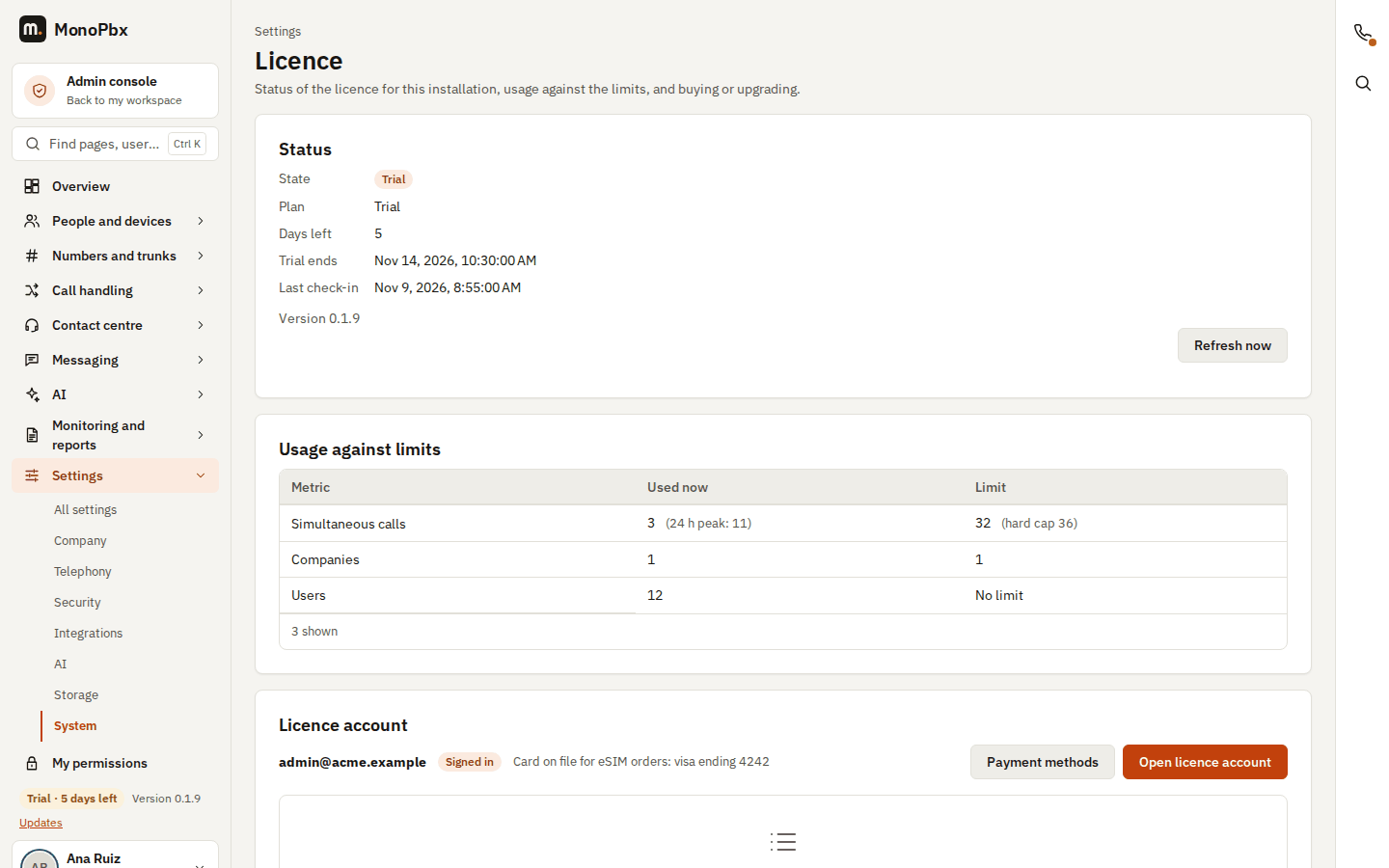
The Licence page during the 7-day trial.
- Licence account: sign in to see the account's licences and attach one to this server, start a trial or buy. Once signed in the page shows Signed in as ... on every visit, with Sign out of licence account and Unlink and remove licence (see above).
- Status: No licence, Trial, Active, Grace period, Ended (read-only), Suspended (read-only), In use on another server (read-only) or Invalid; the plan, days left, the date the trial or licence ends and the licence account. Refresh now updates the status at once.
- Usage against limits: for each limit in the licence (simultaneous calls, users, companies) what is used now, the limit and a mark when you are over. A limit that is missing is shown as no limit.
- Buy or upgrade: enter the e-mail and password of your licence account (the password is not stored), then choose a plan and Buy yearly or Buy monthly. You go to the payment provider's secure page in the same tab and come back to the Licence page, which shows one clear result (see below). The Licence page also shows the version and build of the server (for example Version 1.0.0 · build Nov 19, 2026 (36e9e95)). Plans marked "contact us" are by quote. When a per-company add-on is offered, the page asks for the number of companies. A plan with a free trial period starts with it on your account's first purchase: the card is charged when the trial period ends. You can also enter a promotion code at checkout: a discount code, a volume code (for plans from a given number of simultaneous calls), a partner code (for customers of that partner) or a code that adds free days before the first charge. A code is checked when you open the payment page and used up only when the payment is confirmed; each account uses a code once.
- Paste a licence: apply a licence you received as text, for example when the server has no internet access. It must be the one issued for this installation; an older or ended one is refused.
The result of a payment
When the payment page sends you back, the Licence page asks the licence service what became of the payment (the licence service asks the payment provider itself; the address in your browser is never trusted) and shows one result card:
| Result | What you see | What to do |
|---|---|---|
| Payment approved | The plan, the number of simultaneous calls and the renewal date. The licence is already applied. | Choose Done. |
| Payment declined | The reason in plain words: card declined, insufficient funds, expired card, wrong security code or number, the bank could not process it, or the bank did not confirm your identity. Nothing was charged. | Try again opens a new payment page for the same plan; Change payment method returns to the plans so you can pay with another card. |
| Payment cancelled or Payment page expired | You left the payment page, or it timed out. Nothing was charged. | The same two buttons. |
| Payment pending | A cash voucher (OXXO) or a bank transfer that is not paid yet, with a link to the voucher or the transfer details. | Pay it; you get an e-mail as soon as it clears and the licence starts. You do not need to keep the page open. |
| Confirming your payment | The payment was received and is being applied. The page asks again by itself for a short while. | If it stays, choose Check again. |
The same result card is used for every payment in the console (licences, eSIM orders, and voice and cloud purchases as they arrive), so a payment always ends in one of these words.
First sign-up
The first-run setup wizard has a required licence step. Sign in to your licence account (or create one there), then attach a licence to this server: start a trial, attach a licence you already bought on the website, or buy one. Creating an account asks the same details as the website (first and last name, company if any, city, country and a phone number with the country code) and sends a verification e-mail. Keep the wizard open and open the link: the wizard notices the confirmation within a few seconds and starts the trial by itself, with no second sign-in (an older licence server still needs I opened the link: sign in). Your account then has a complete profile, so the website does not ask for it again. Next stays disabled until a valid licence (trial or paid) is attached to this server. The same account is used on the Licence page to buy.
If the server has no internet access, paste the licence file you received from MonoPbx in the same step.
Alerts
| Code | Meaning |
|---|---|
LIC-TRIAL-ENDING | The trial ends soon |
LIC-ENDED | The trial or licence ended: the console is read-only |
LIC-SC-LIMIT | New trunk calls were refused at the licensed number of simultaneous calls |
LIC-INVALID | The installed licence is not valid for this installation |
LIC-SUSPENDED | The licence is suspended, for example because a payment was disputed: the console is read-only until it is resolved |
LIC-CLONE-DETECTED | The licence is in use on another server: the console is read-only until the licence is attached to this server again |
If the licence could not be renewed, the Licence page says so: check that the server can reach the internet, or contact support.
Activation page
Admin > Activation and push (/admin/activation). Needs system.settings:read; system scope only.
Mobile push notifications wake the mobile apps for incoming calls while they are closed. The page shows whether push is active for this installation and any alerts.
- Activate with a code: for sites behind a firewall. Enter the single-use activation code you received from MonoPbx (four groups of four letters and digits; lower case, dashes and spaces are fine). Five attempts are allowed in 15 minutes.
Activation never switches calls or features off. Calls on desk phones, the desktop app and the web client do not depend on it. It is separate from the licence above.