Call assistant policy
Every user can turn on a personal call assistant that answers and screens their calls. The company policy decides who may use it and how. Changing it needs the permission screening:admin (held by the Owner role). The policy is in every edition.
In the console, open Admin > AI > Call assistant. The page has four parts: who may use it (the personal assistant switch and the personal automations switch), the modes users may pick (with the screen-colleagues default), the disclosure line, and the monthly minute budgets. Save applies the policy from the next call; if a colleague saved first, the page reloads and asks you to repeat your change.
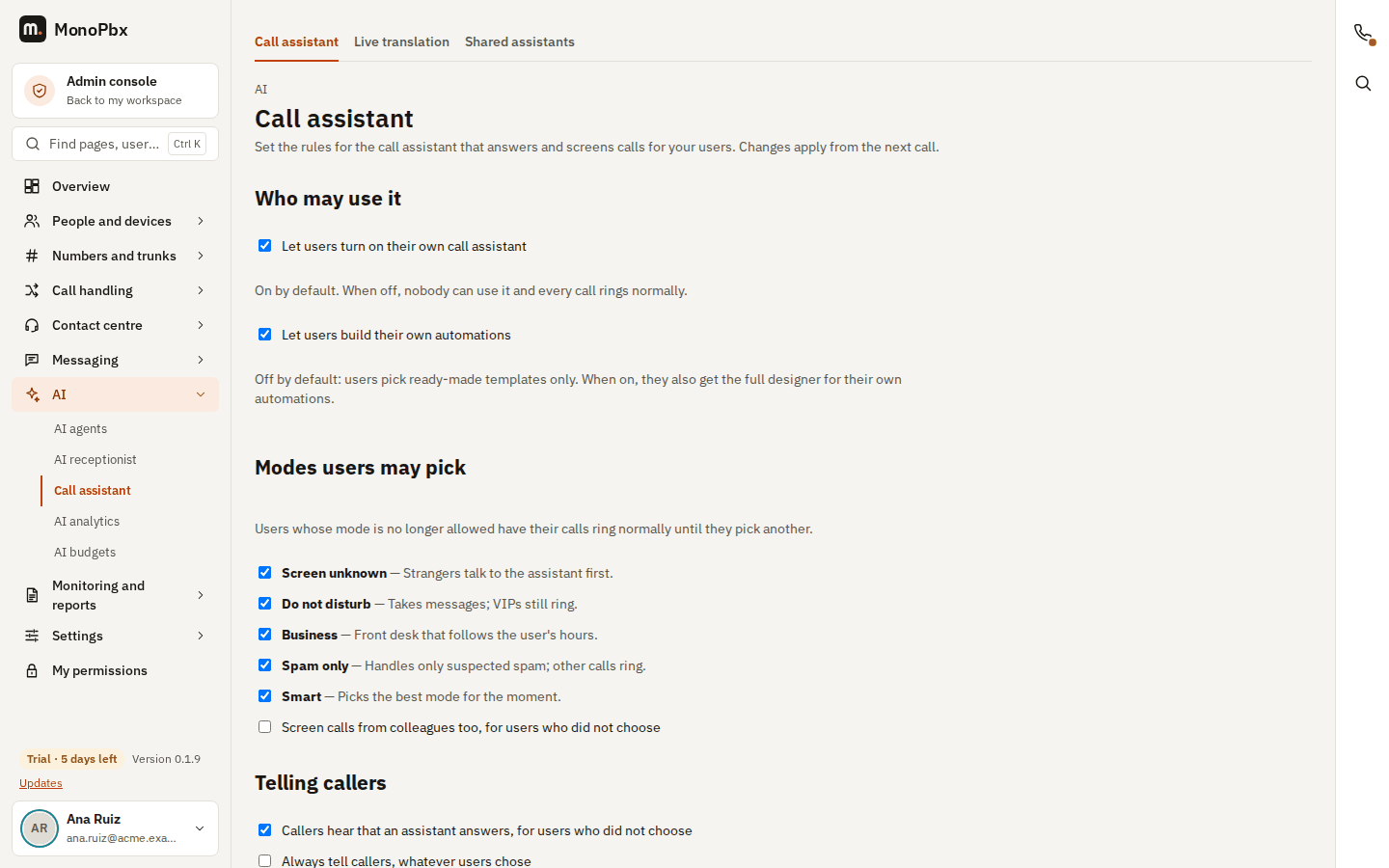
| Setting | Default | Meaning |
|---|---|---|
| Personal assistant | On | Users may turn on their own assistant. Off: calls ring as usual for everyone. |
| Allowed modes | All | The modes users may pick (Screen unknown callers, Do not disturb, Business, Only spam, Smart). |
| Disclosure line | Off | Callers first hear that an assistant answers and that the call is transcribed. Users may turn it on for themselves. |
| Force the disclosure line | Off | Callers always hear it, whatever users chose. |
| Screen colleagues | Off | Internal calls are screened for users who did not choose. |
| Minutes per user and month | 300 | Screened minutes before a user's calls ring normally again (0: no limit). Users are notified at 80 % and 100 %. |
| Minutes per company and month | None | An optional limit for the whole company. |
| Users may build their own automations | Off | Off: users pick from templates only (MonoPhone Assistant > More automations). On: a user's rules may also hand calls to a published company call flow, and the full designer is open to them. |
A call in progress is never cut when a limit is reached: the limit applies to new calls.
Shared assistants and roll-out
Open Admin > AI > Call assistant > Shared assistants (same permission). The page has three parts:
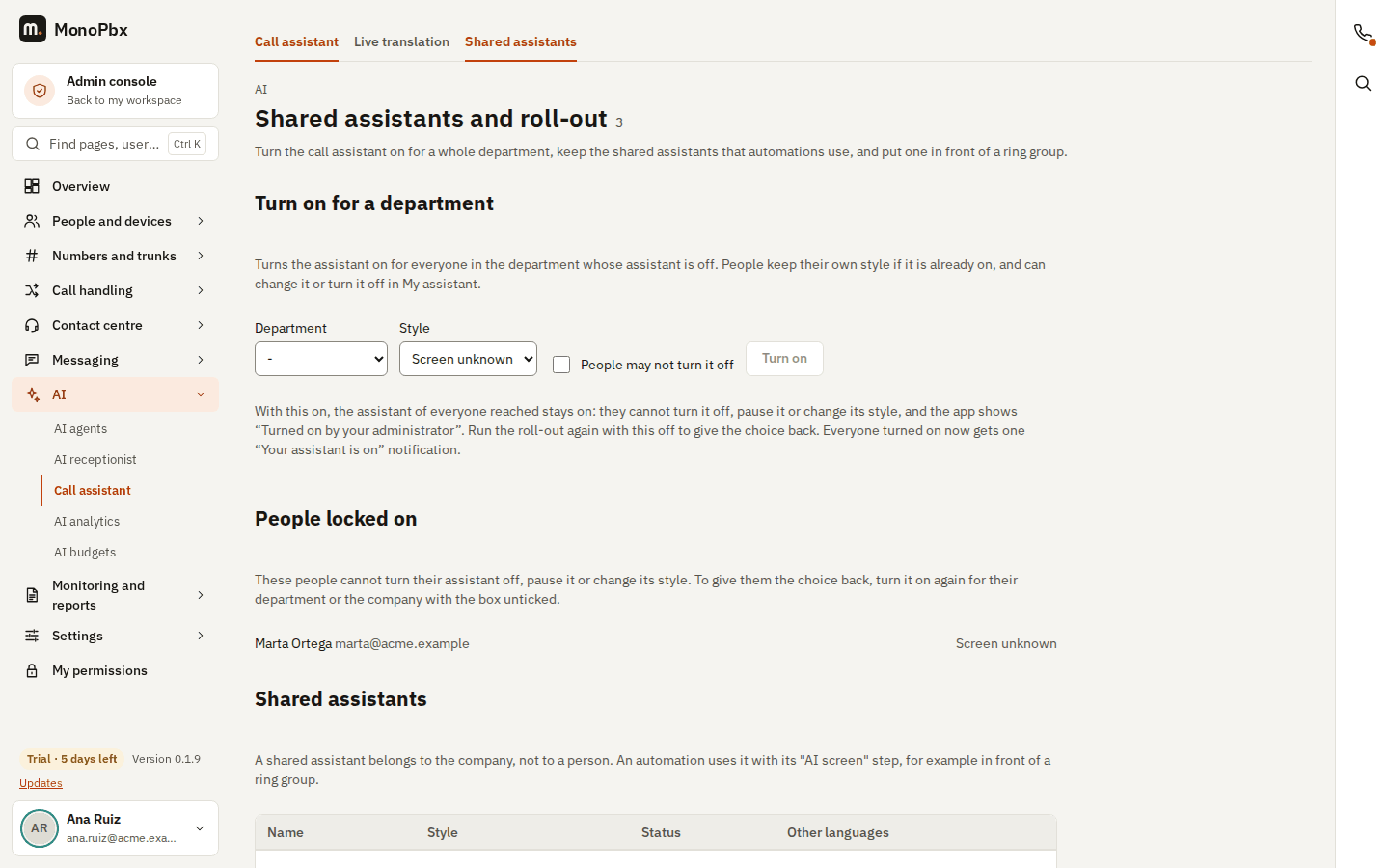
- Turn on for a department or the whole company. Pick a department (or Whole company) and a style (Screen unknown callers by default) and press Turn on. The assistant is turned on, in that style, for everyone reached whose assistant is off; a person who never opened My assistant gets one with the defaults. People whose assistant is already on keep their own style. Each person turned on receives one Your assistant is on notification in their own language; tapping it opens My assistant. People who already had it on, and people turned on by an earlier run, get no new notification. The page says how many people were turned on, how many already had it on and how many were notified. The style must be one the policy allows, and the personal assistant switch must be on. A roll-out reaches at most 2000 people at a time.
- People may not turn it off. Tick this box to lock the assistant on for everyone the roll-out reaches, including people who already had it on. They cannot switch it off, pause it or choose another style: in My assistant the switch is greyed out and reads Turned on by your administrator, and the quick switches (Control Center and Lock Screen controls, Siri and Shortcuts, widgets, the Android Quick Settings tile, a Focus filter or the phone's Do not disturb) show the same state and never turn it off. They can still change the other settings, such as the voice, the rules and the context note. The People locked on list below shows who is locked (
GET /api/v1/screening/locked-people). To give the choice back, run the roll-out again for the same people with the box unticked. - Shared assistants. The company's shared assistants: add one by name, turn it on or off, delete it. An automation uses a shared assistant with its AI screen step.
- Screen before a ring group. Each ring group has a Screen with AI first button (also on the Ring groups page, and on a number on the Inbound routes page when it rings a ring group). It asks for the shared assistant (or makes a new one) and a voicemail box for messages, installs the Front-desk screener for a ring group template for that group and, if you leave Send the calls of the numbers that ring this group to the assistant now ticked, points those numbers at the new automation. Untick it to do that yourself later. The buttons need screening:admin and the right to change automations.
The department turn-on is POST /api/v1/screening/departments/{id}/turn-on and the company turn-on POST /api/v1/screening/company/turn-on, both with {"mode": "screen", "locked": false}. A locked assistant answers changes that turn it off with MPBX-SCREEN-LOCKED (see the call assistant error codes).
Personal automations
Admin > Call handling > Call flows > Personal lists the automations people made for themselves from the personal templates, with their owner and whether they are live (an event automation is on or off; a call automation runs when a call is sent to it). It is read only, so nothing runs that an administrator cannot see; open an automation in the automation designer to look inside. The same list is GET /api/v1/screening/personal-flows.
AI and speech providers
The assistant runs on the AI call screening assistant feature in Admin > AI: the model that understands the caller, the speech-to-text provider that hears them and the text-to-speech voice that speaks. Until you save that feature, the assistant uses the settings of the Voice agent feature. When the feature is off, the assistant is not offered and calls ring as usual. The default model is the fast real-time model of your provider. See AI setup.
- Consent announcement. When the feature asks for the consent announcement, every caller hears the disclosure line first, whatever the policy and the users chose.
- Short calls. The assistant asks at most three questions by default (each user can choose one to five) and spends at most 90 seconds on a call. If the AI or speech provider does not answer in time, the user's rules decide on what was heard; if speech recognition is not available at all, the call goes to voicemail (or rings as usual in Only spam).
- Languages. The assistant greets callers in the user's language and switches once to the caller's language when it is one of English, German, Spanish, French, Italian, Japanese, Portuguese, Russian or Chinese. For other common languages (for example Arabic, Dutch, Hindi, Korean, Polish, Turkish or Ukrainian) it follows the caller too: the assistant's fixed sentences are translated while the call goes on, by your company's own AI model (no extra service or key), and it listens and speaks in that language when your speech providers support it. A sentence that cannot be translated, or a language the speech provider refuses, is spoken in English or in the language the call had, so the call is never dropped because of a language. A user's own wording for a sentence is written in the user's language and is not translated. Once a sentence is translated, your company reuses that translation (and the audio made from it) for later calls in the same language for a day, so a language that callers use often is translated and synthesised once, not on every call. Your AI usage counts the extra translation requests. The switch Also follow other common languages (My assistant for a personal assistant, and the Other languages column of Shared assistants) turns this off for one assistant: callers in those languages then hear the assistant in the language of its profile. It is on by default. The summary the user reads stays in the user's language.
- Ready greetings. Standard lines such as the greeting are spoken once by your text-to-speech provider and kept in your company's file storage, so later calls start without a delay and do not pay for them again.
Cost
The Usage table of Admin > AI shows an Estimated cost (USD) for screened calls, per day and model: the model's tokens, the seconds of caller audio sent to speech-to-text and the characters spoken by text-to-speech, at the providers' published list prices (or the speech-to-text price you entered for a provider). It is an estimate; your provider bills you on your own account. The same figure is stored with each call in the history and returned as cost_micros (millionths of a US dollar) by GET /api/v1/ai/usage.
Shared assistants
A shared assistant screens calls for a number, a ring group or a queue, for example a front desk that sends existing customers to support and new enquiries to sales. Create it with the Front desk template, pick where each kind of caller goes, and use it in a call flow. Its rules and wording are edited like a user's own.
In a call flow
A call flow screens its callers with a shared assistant through the AI screening node, found under AI in the palette of the automation designer (in the API: ai_screen, call flows of graph schema version 2, config.profile_id naming the shared assistant). The Front-desk screener for a ring group and Personal call screening templates are this node already set up. The node has three exits:
| Exit | Taken when |
|---|---|
| Next | The assistant is done: it said goodbye, declined or blocked the caller, or took a message. |
| Voicemail | The caller should leave a message (the rules said voicemail, or nobody answered). |
| On error | The assistant could not run (the AI feature is off, a provider did not answer). Point it at your usual destination so callers are never lost. |
A caller the assistant puts through to a person has left the flow. A rule may also hand the call to another published call flow. The assistant only ever rings extensions, ring groups and queues of your company, never an outside number.
How users' calls reach their assistant
A user's assistant takes their calls the way "forward on no answer" does, so statuses keep their meaning: a forward the user set to another extension, a number or their mobile wins, and a forward to voicemail is answered by the assistant instead. VIP callers, the user's own phones and mobile, and colleagues (unless screened colleagues are on) always ring the user directly. An executive's personal assistant (a person, see Executives and assistants) comes before the call assistant. Whenever the assistant cannot run, calls ring as usual.
Spam list and suspected spam
Every user's assistant treats a caller as a suspected spam call when:
- the carrier signed the call with STIR/SHAKEN attestation C (the number is not vouched for),
- the number is on the company's spam list (a single number, or a prefix such as
+1900), - at least two people of the company blocked the number, or had their assistant decline and block it, in the last 90 days.
Suspected callers are answered by the assistant at once and match the rules about suspected spam. The list and the marks belong to your company only: nothing is shared with, or learned from, other companies. Keep the list with GET/POST /api/v1/screening/spam-list and DELETE /api/v1/screening/spam-list/{id} (at most 5000 entries; changes are audited).
Privacy, retention and legal hold
- Transcripts follow the company's AI call transcript setting (the same one as the AI receptionist's calls). When the company does not keep transcripts, the assistant stores only the summary and the outcome of each call.
- Retention: after the company's transcript retention (30 days by default), the conversation, the summary, the name the caller gave and the caller's number are removed every day. The call's duration and outcome stay until the end of the month, because the monthly minute limits count them.
- Legal hold:
PUT /api/v1/screening/sessions/{id}/legal-holdwith a reason keeps one screened call past the retention; a data-subject erase then reports it as kept instead of deleting it. Releasing the hold lets the retention apply again. Both are audited with the reason. - Data-subject requests export and erase the screened calls of a person (the calls screened for a user, and the calls from the person's numbers) and the user's phone-contact fingerprints.
- Audit: changes to the assistant settings and rules, blocks, spam-list changes, legal holds and every command a user sends during a screened call (which command and from which device, never the words) are in the audit log.
Live screening
Users follow a screened call live in MonoPhone and the web console, and can answer, decline, block, send it to a colleague or reply with text during the call. The live view and its commands are for the user the assistant works for only. Notifications use the install's push setting: with caller details on, they show the caller's number and the summary of the call; with wake-only pushes, they show neither.
API
The assistant is fully available through the REST API: /api/v1/me/assistant (a user's own settings, rules, templates, phrases, voices, contacts, history and counters; signed-in sessions only) and /api/v1/screening (the policy and the shared assistants). Error codes are listed under screening.