Automation templates
Templates are ready-made automations. Pick one, let the PBX fill in what it can, and it creates and publishes the automation for you.
The gallery in the console
Open Admin > Call handling > Call flows > Templates (permission to view call flows). Each template is a card with its name, what it does and a chip: Ready (nothing to fill in), Needs a choice or Needs setup (something has to be connected or created first, the card says what). Search, pick a category, or tick Ready to install to narrow the list.
- Install on a ready card creates the automation in one click, switched off, so you can look it over first. A banner then links to the designer.
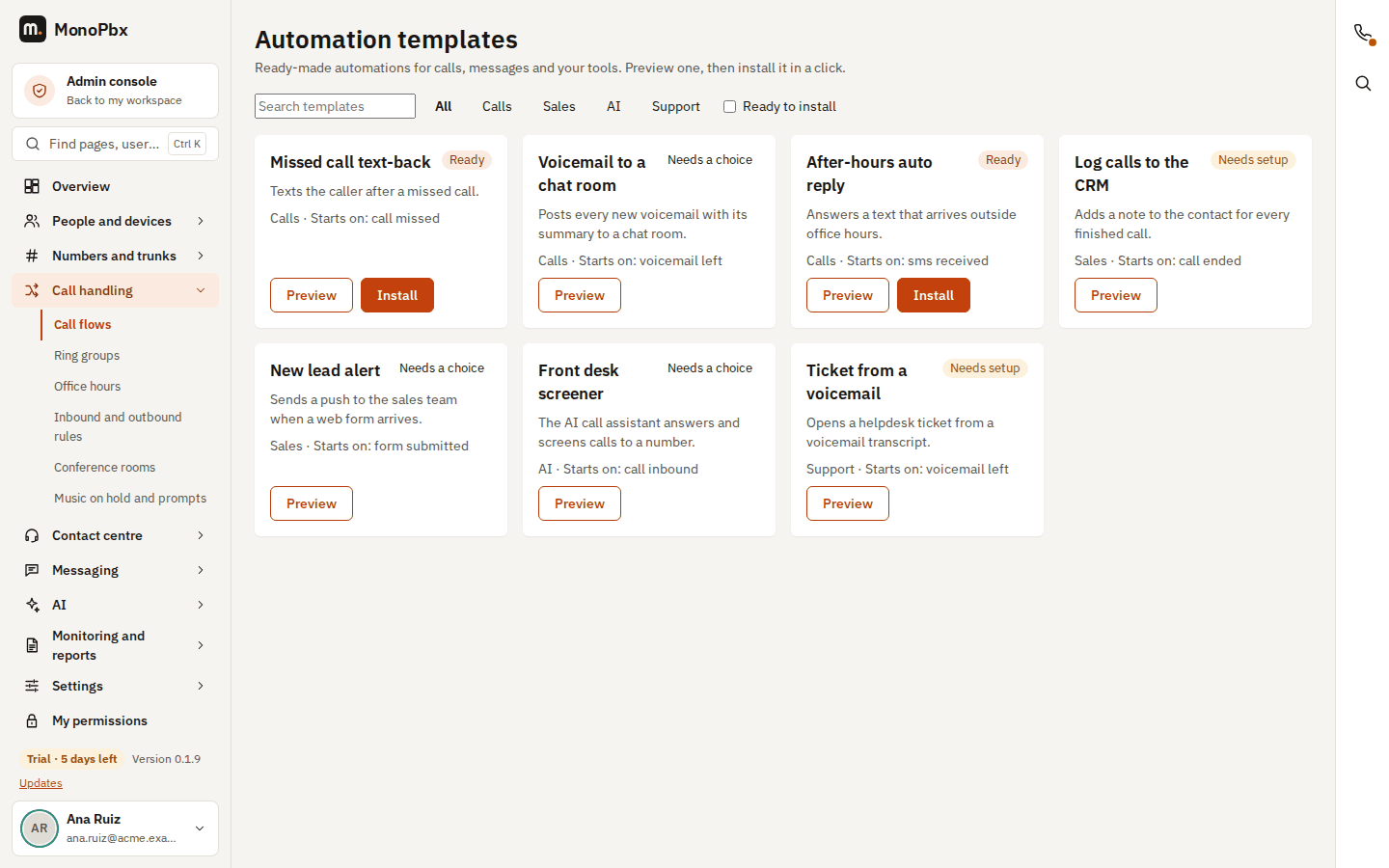
- Preview shows what the template does, what starts it and what it needs. Choose the missing pieces from the lists, tick Turn it on right away if you want it live, and press Install. A template that still needs something to be connected cannot be installed until you have done that.
Installing needs the permission to change call flows. The same gallery is available to your users in the MonoPhone app when your company allows personal automations (see Call assistant policy).
The gallery through the API
GET /api/v1/flows/templates lists the templates in your language (locale: en, de, es-MX, fr, it, ja, pt-BR, ru or zh-Hans). Each has a category (Calls, AI, Sales, Support, Personal), a name, a one-line description, the trigger that starts it and the things it needs. For each need the answer says where it stands for your company:
| Status | Meaning |
|---|---|
ready | Filled in already: the only team chat group, your own extension, your company's first SMS number, a default text. |
choose | Several options exist; pick one from choices. |
missing | Nothing to choose yet. The hint says what to create first, for example a team chat group or an SMS number. |
ask | Type a value. |
When every need is ready, the template installs with one click.
Install
POST /api/v1/flows/templates/{id}/install with the values you chose:
{ "inputs": { "room": "<team chat group id>" }, "enable": false }
Only what cannot be filled in is asked. If a need is still open, nothing is created and the answer lists each open input. A value must be one of your company's own options. The automation is checked, published, and left turned off unless you send "enable": true; turn it on later with POST /api/v1/call-flows/{id}/enable. Its name is the template's name, with a number added when your company already has an automation by that name. You need the permission to change call flows.
Templates included
Eighteen templates ship with the product. The first three columns say what each one does; the last says what you need before it can be installed (an integration, an AI agent, a group or a number). Anything missing shows a "Create ... first" hint instead of failing.
| # | Template | Category | What it does | Needs |
|---|---|---|---|---|
| 1 | Personal call screening | Personal | Your assistant answers unknown callers first, then rings you, takes a message or blocks them. | Nothing: your own assistant, extension and voicemail box |
| 2 | After-hours AI receptionist | AI | In office hours the call rings your team. After hours an AI receptionist helps the caller and sends a text follow-up. | Office hours, a ring group, an AI agent, an SMS number |
| 3 | Missed call: text back and CRM task | Sales | Texts the caller back, adds the caller to the CRM when it does not know the number, and creates a call-back task due in 15 minutes. | An SMS number, a CRM connection that can create tasks |
| 4 | Voicemail: summary to chat and helpdesk ticket | Support | Summarises each new voicemail with AI, posts it in a team chat group and opens a helpdesk ticket. | A team chat group, a helpdesk connection |
| 5 | VIP callers ring my mobile | Personal | Calls from your VIP numbers ring your extension for 10 seconds, then your mobile. Everyone else rings normally. | Your extension, your mobile number, the VIP numbers |
| 6 | Web lead: call back within a minute | Sales | When a visitor asks for a call, creates a lead in the CRM, rings your sales queue first, then dials the visitor, then saves a note in the CRM. | A live chat channel, a queue, a CRM connection |
| 7 | Live trigger: alert supervisor and create task | Support | When a live call trigger fires (for example a cancellation), notifies your supervisors, adds the caller to the CRM when the number is not there yet and creates a follow-up task for that number. | A live call trigger, a CRM connection that can create tasks |
| 8 | Daily wrap-up | Calls | Every day at a set time, an AI-written end-of-day note goes to a team chat group and by e-mail. | A team chat group, an e-mail address, a time and time zone |
| 9 | Appointment booking by phone | AI | An AI scheduler answers the call, books the appointment, and the caller gets a text confirmation. | An AI agent, an SMS number |
| 10 | Block spam and withheld callers | Personal | Calls with a hidden number are refused. The assistant checks the rest and stops spam, and rings you if it cannot run. | Nothing: your own assistant and extension |
| 11 | WhatsApp keyword: reply and route | Support | A WhatsApp message with your keyword gets a reply (free text, or your approved template when the 24-hour window is closed), AI sorts it into sales or support, and a person is told. | A keyword, a reply text, an approved WhatsApp template, a user to tell |
| 12 | Call ended: note to CRM | Sales | After each answered call of a minimum length, an AI-written note is saved on the caller's CRM record. | A CRM connection that can add notes |
| 13 | Refund approval | Sales | When your shop sends a refund request, a manager approves or rejects it in the app, and the customer is told by text. | A manager, an SMS number |
| 14 | Front-desk screener for a ring group | AI | A shared assistant greets callers first, then rings the group, or takes a message when nobody can answer. | A shared assistant, a ring group, a voicemail box |
| Missed call text-back | Calls | Texts people back right after you miss their call. | An SMS number | |
| Voicemail to team chat | Calls | Posts every new voicemail, with its summary, in a team chat group. | A team chat group | |
| New text to team chat | Calls | Posts every incoming text message in a team chat group. | A team chat group | |
| One person's missed calls to team chat | Calls | Tells a team chat group whenever one person misses a call. | A team chat group, a person |
Templates 1, 2, 5, 9, 10 and 14 answer calls. After you install one, send the number (or the extension, ring group or forwarding rule) you want to it from the call routing pages. Event templates start on their own trigger once you turn them on.
Personal templates
Templates 1, 5 and 10 are personal: installing one makes a personal automation that belongs to the person who installed it. A person who never opened My assistant can install Personal call screening straight away: the install creates their assistant, turned off, and they turn it on in My assistant when they are ready. Administrators see these automations in Call flow designer > Personal (see Call assistant policy). Each person can have a limited number of personal automations; over the limit the install is refused.
Good to know
- The Daily wrap-up writes a short end-of-day reminder note. It does not include call counts.
- The call-ended note is written from the facts of the call (direction and talk time).
- A template that uses AI needs the company's AI switch on. If it is off, the automation takes its error branch and carries on without the AI text.
After installing, open the automation in the automation designer to change it, and use test with sample data before turning it on.