AI agents and the AI console
An AI agent answers calls with a voice: it greets the caller, answers from the knowledge you give it, can take a message and can hand the caller to a person. This page covers the agent pages of the console. Tools, connectors, the knowledge base and MCP access are in AI tools, connectors and knowledge.
Before you start
- Set up a provider and turn on the Voice agent feature in Admin > AI. An agent answers only while that feature is on. See AI setup.
- While an agent talks, the call's speech goes to the speech and language providers you chose. Tell callers where your rules require it (the consent announcement in AI settings).
Where things are
| Page | Menu path | Permission to see it | Permission to change |
|---|---|---|---|
| AI agents | Admin > AI agents (/admin/ai-agents) | settings:read | settings:write |
| AI receptionist | Admin > AI receptionist (/admin/ai-receptionist) | settings:write | settings:write |
| Outbound AI calls | Admin > Outbound AI calls (/admin/ai-outbound) | settings:read | settings:write |
| Agent messages | Admin > Agent messages (/admin/ai-messages) | ai:read | not applicable (read only) |
| Call quality | Admin > Call quality (/admin/ai-quality) | reports:read or ai:write | ai:write |
| AI analytics | Admin > AI analytics (/admin/ai-analytics) | settings:read | not applicable (read only) |
AI agents
An agent is a company object. Several can exist (up to 50).
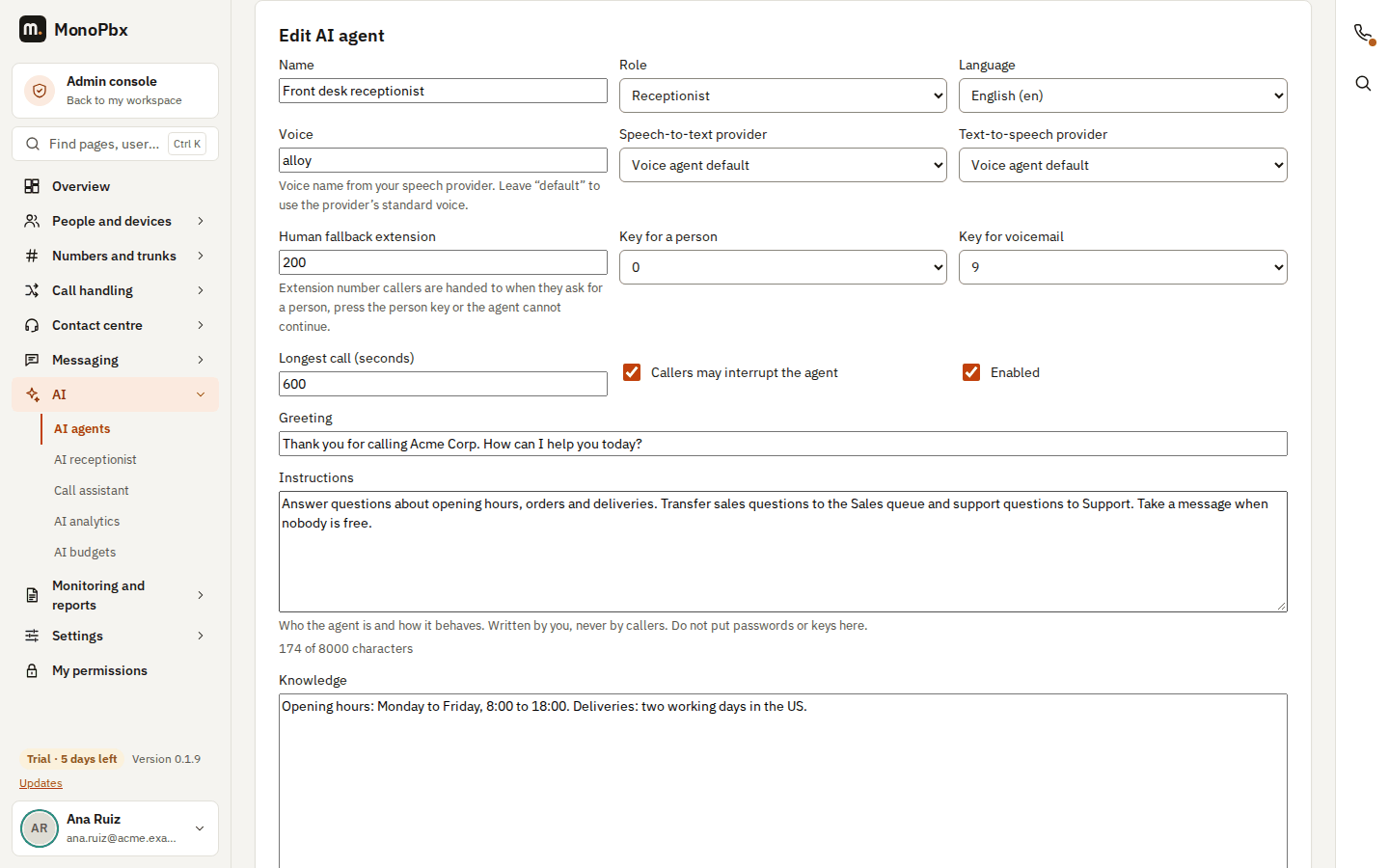
Create an agent
- Open Admin > AI agents and choose Add agent. To start faster, choose Start from a template, pick one and choose Create draft: the draft is created switched off for you to review.
- Fill in the fields:
| Field | Meaning and limit |
|---|---|
| Name | Up to 80 characters |
| Role | General, Receptionist, Support, Sales, Scheduling or After hours |
| Language, Voice | Language such as en-US; the voice name from your speech provider. Hear this voice plays a sample |
| Speech-to-text and text-to-speech provider | Leave on the Voice agent default, or pick one of your providers |
| Greeting | Up to 500 characters |
| Persona | How the agent presents itself, up to 2,000 characters. Callers cannot change it |
| Instructions | Who the agent is and how it behaves, up to 8,000 characters. Do not put passwords or keys here |
| Knowledge | Facts it answers from (hours, prices, procedures), up to 30,000 characters. The agent treats it as reference text, not as commands |
| Knowledge sources | Documents from the knowledge base, up to 20 |
| Longest call | 30 to 3,600 seconds |
| Callers may interrupt the agent | Barge-in on or off |
| Human fallback extension | Where callers go when they ask for a person, press the person key or the agent cannot continue |
| Key for a person, key for voicemail | The keys callers can press |
| Allowed tools | Every built-in tool, or only the ones you choose |
- Save, then switch the agent on.
Built-in tools are: look up a contact, take a message, transfer to a person and hand over to another agent. Hanging up is always allowed. Hand-over to another agent is off unless you choose it; the peers are the company's other enabled agents. Custom tools are assigned on the tools page.
Use the agent in a call
- In Admin > Call handling > Call flows > Call flow designer, add an AI agent step and choose the agent. Point a number at that flow. When the agent finishes, the flow continues at Next; if it cannot start, at On error.
- Other places that can send callers to an agent: an inbound caller rule (destination AI agent), and a queue (its overflow, and its exit key, can lead to an AI agent). See Queues and ring groups.
What the person who takes the call sees
When an agent transfers a caller to a person (an extension, a ring group or a queue), it hands over a short summary of the conversation. The web phone and the MonoPhone app show it on the ringing call and keep it on the call screen after answering, under Summary from the AI agent, so nobody has to ask the caller again. The summary goes only to the phones of the people the call rings, and only over an encrypted connection (TLS or secure WebSocket). Desk phones of other makes may not show it.
Selection rules and override
- Selection rules (up to 10) decide which agent answers the calls that reach this one. A rule names an office-hours schedule, the states it applies to (Open, Closed, Break, Holiday) and the agent that answers. The first matching rule wins. A rule cannot name its own agent.
- Manual override makes a chosen agent answer every call that reaches this one, until the time you set (or until you clear it). An agent cannot override itself.
- Who answers now checks the result for a time of your choice and shows which rule matched, the hand-over peers and the maximum number of hand-overs per call.
Try it before callers do
- Try (text): type as the caller and read the agent's answer. It uses the same instructions, knowledge and tools as a call. Tools are never run: the console shows what the agent would use. Needs
settings:writebecause it spends your provider budget. - Start voice call: a live call from your browser. Speak into the microphone; speaking over the agent interrupts it. It counts as usage, nothing is recorded, tools are not executed, and it ends after five minutes.
Changes and reverting
Recent changes lists the edits to an agent with Revert. The history keeps the texts sealed; only people with settings:write or history:revert see them.
AI receptionist
Admin > AI receptionist puts an agent on one of your numbers from your website.
- Enter the website address and choose Read my website. The PBX reads the site (it follows
robots.txt, stays on the same host and limits pages, depth and size), turns each page into a knowledge source and proposes opening hours and a list of questions and answers. If no AI model is set up, built-in rules make the proposal and the page says so. - Check and edit the hours, the time zone and the questions. Choose the number (DID) to answer and, optionally, a fallback extension. With a fallback, callers press 0 for that person and 9 to leave a voicemail.
- Choose Go live. One confirmation creates the knowledge sources, a custom office-hours schedule and an enabled agent from the receptionist template, and routes the number to it.
If another route already uses the number, the confirmation is refused and nothing is taken over.
Read the website again
When your website changes, open the run and choose Read the website again. The PBX reads the site with the same rules and shows what changed:
- New pages become knowledge sources. Once the receptionist is live, they are also given to its agent (an agent has at most 20 sources; the page says how many could not be added).
- Changed pages replace their text; the source keeps its place in the agent.
- Pages the site no longer has are listed and kept. Remove them on the knowledge page if you want.
Reading a site takes at most about 45 seconds; a site that takes longer is read in part, like a site with more pages than the limit.
An AI client connected over MCP with the settings:write scope may start the wizard for a website you name and read the proposal back to you. Only an administrator can put the receptionist live, in the console.
Outbound AI calls
Admin > Outbound AI calls runs campaigns in which an agent calls people: reminders, callbacks and surveys.
Create a campaign
- Choose New campaign. Set the name (up to 80 characters), the kind (reminder, callback or survey), the AI agent and the calling extension. The calling extension's profile governs the call: the dial plan decides destination permissions and caller ID exactly as for that extension. If it may not present the caller ID you set, every call is
blocked. - Set the calling window (start, end, days, time zone) and the jurisdiction. The window is narrowed by the jurisdiction:
usandcaallow 08:00 to 21:00,euallows 08:00 to 20:00. These are guard rails, not legal advice. - Set the pace: attempts per number (1 to 10), retry delay (60 to 604,800 seconds), calls per minute (1 to 120), simultaneous calls (1 to 50) and calls per day (1 to 100,000).
- Write the purpose (what the agent tells the person, up to 4,000 characters). Optionally set a disclosure text (up to 500 characters; empty uses the default in the person's language), announce that the call is recorded, and choose the opt-out key.
- Save, then switch the campaign on.
Up to 100 campaigns can exist. Use Edit to change one and Delete to remove it: deleting removes the campaign with its jobs and attempt records and cannot be undone. The do-not-call list is kept.
Jobs and results
- Import jobs from CSV with the columns number, contact name and your reference (a header line is optional). Files are sent in batches of up to 200 rows.
- A job has a status: queued, dialing, completed, failed, cancelled, opted out or blocked. You can cancel a job and Export results (CSV).
Do-not-call list
Numbers on the list are never called by any campaign. People who ask not to be called, and numbers that opted out by SMS STOP, are never queued or dialled. Add numbers as lines or from a CSV file.
Agent messages
Admin > Agent messages lists every message the voice agents took, newest first: caller, extension, the person it is for, the text and its status. Treat the text as customer data. A person sees the messages for their own extension on the Agent messages page and can mark them read. They can choose to get an e-mail when a message is taken (on by default; the push to their phones is not affected).
Call quality
Admin > Call quality scores every finished call that has a transcript on greeting, script, sentiment, compliance phrases and promises made.
-
Monitoring: switch Score calls automatically on and set how many calls are scored per day.
-
Scorecards: set weights (0 to 100) and, per card, greeting phrases, required phrases and script steps (up to 20 phrases, one per line). Without a card the built-in default (equal weights, no phrases) applies.
-
Agents lists each agent's trend, lowest items, missed phrases, latest notes and coaching tips; the call list shows the lowest-scoring calls.
-
Compliance alert: set a share of calls (in percent, 0 is off) and the number of scored calls an agent needs in the last 7 days. When an agent misses a required phrase in at least that share of their scored calls, the supervisors who hold
reports:readget an alert in the app and console (at most once a day per agent). The alert names the agent and the counts, never a phrase or a call. -
In Calls > History, the detail of a scored call shows its score, the item scores, the missed phrases and the coaching note to anyone with
reports:read.
Changing monitoring and scorecards needs ai:write; reading needs reports:read.
To score calls by hand with the same scorecards, compare reviewers with the AI and calibrate them, see Quality reviews.
AI analytics
Admin > AI analytics shows, for the last 7, 30 or 90 days (default 30), the top topics, the hand-over rate and the tool success rate, per agent and per tool. Hand-over counts analysed calls that ended with a human next step. Test runs are not counted.
Outcomes and work done
Outcomes and work done shows how each agent's calls ended for your business:
- Resolved: the agent finished a task, or closed the call itself after answering, without passing it to a person. Tasks are bookings (calendar or a booking system), payment links, leads in the CRM, quotes, helpdesk tickets and messages (a message taken, or a confirmation sent by SMS, WhatsApp or e-mail).
- Handed over: a person or another agent took the call.
- A call the caller hung up on with nothing done counts as neither.
Next to each agent you see how many of its calls did each kind of work. A task counts only when it really ran: a read-back that the caller did not confirm, a test run or an error does not count.
Resolutions in your plan
Some licence plans include a number of AI resolutions per month. The tile Resolutions in month shows this month's resolved calls and, when your plan includes resolutions, how many it includes (for example "312 of 500 included"). On a server that hosts several companies, the plan's number covers the whole server and each company sees its own count. The count is shown for your information; nothing is blocked when it is reached.
Working with the lists
The agent list works like the Users list: the agent's name opens the Try panel, and the ... menu at the end of a row has Try, Edit and Remove. Add agent is the button at the top right; the History link next to the name lists the agent's changes. Below 640 pixels wide the table turns into cards with no sideways scrolling. A list that cannot be loaded shows the reason and Try again.