Administration in the MonoPhone app
Administrators can handle everyday tasks from the MonoPhone app on a phone, tablet or computer, without opening the web console. Open Me > Work > Admin in the app (tap your photo to open Me). The entry appears only to someone whose roles grant at least one admin permission, including an owner or administrator of the server who holds no role in the company itself (they see the server's screens: System status, Alerts, Licence and Updates). A signed-in administrator opens it directly, without signing in again. Each screen appears only with its own permission, and the server checks that permission again on every request, so hiding a screen is never the only protection. If your company requires a fresh sign-in for administration, the app asks for it before a destructive action (for example disabling a user), not when you open Admin. The back arrow in the top bar and Back to Me at the bottom of the menu return to Me.
Finding your way around
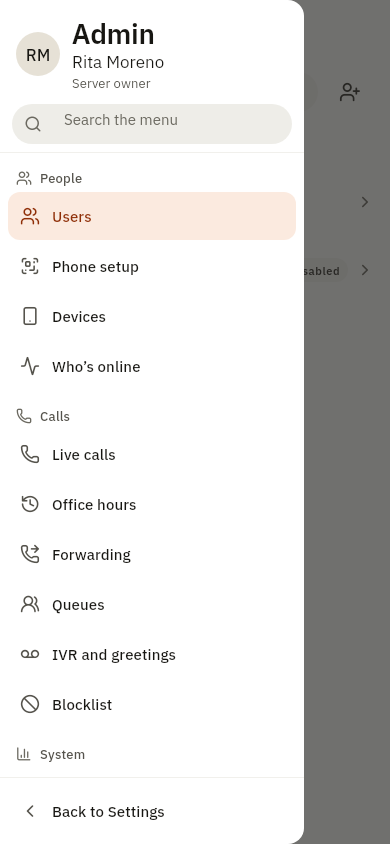
The admin screens are listed in a menu, in four groups:
| Group | Screens |
|---|---|
| People | Users, Phone setup, Devices, Who's online |
| Calls | Live calls, Office hours, Forwarding, Queues, IVR and greetings, Blocklist |
| System | System status, Alerts, Call history, Audit log, Copilot |
| Media and services | Voicemail and recordings, SMS and eSIM, Licence |
A group appears only when you may open at least one of its screens. The top of the menu shows your photo, your name and your role in administration: owner or administrator of the server, or administrator of the company or of your departments. Back to Me, pinned at the bottom of the menu so it is always visible, and the back arrow in the top bar return to Me.
The screen that is open is highlighted in the menu, and its name is the page title. While alerts of the server are firing, Alerts shows how many.
- On a phone, open the menu with the menu button at the top left, or swipe in from the left edge. Picking a screen closes the menu, and the system back gesture closes an open menu before it leaves the page.
- On a tablet or a desktop window, the menu stays open at the side.
- Search the menu: type in the field under your name to keep only the screens whose name matches, under their group headings.
How every screen works
All admin screens (and the screens of the Supervisor area) follow the same pattern, so once you know one you know them all:
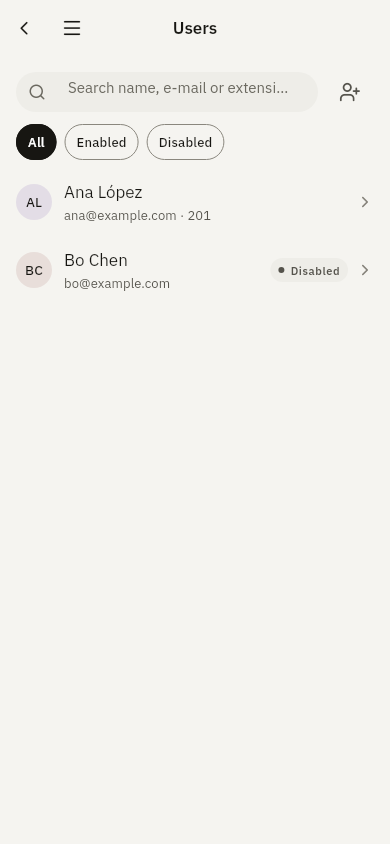
- The top bar has the back arrow and the menu button on the left, the screen's name in the middle, and at most one action on the right.
- Lists start with a search field, with the main action beside it (for example Add user next to the search on Users), and filter chips under it (All, Enabled, Disabled on Users; Everyone, Online, On a call, Offline on Who's online). Lists that have more filters (Call history: direction and period) keep them behind the filter button next to the search.
- Rows show a photo with initials for a person or an icon for anything else, the name, one line of detail (for example the e-mail address and the extension), a status pill where it helps (Disabled, Paused, On a call, Missed) and an arrow when the row opens a page. Colours always mean the same: green for a call or someone available, red for a missed call, a failure or hang up, amber for busy, paused or waiting.
- Actions that remove something (revoke a device, remove a blocklist entry) are in the ⋯ menu at the end of the row or in the top bar, and always ask you to confirm first.
- While a list loads it shows grey placeholder rows. An empty list says what is missing and, where you can add something, offers one button to do it. When something cannot be loaded, the screen says what failed and offers Try again.
- On a tablet, a list and the item you tap sit side by side: the list stays on the left and the user, queue or device opens on the right.
Links to an admin screen still open that screen directly, for example the Night mode shortcut on the app icon, the office-hours and On a call widgets, or a tap on an admin push alert (it opens Alerts).
Phone setup
Phone setup lists the active users who have an extension. Tap a person to show the QR code they scan, show the setup code they type in, or send the setup e-mail. You need users:read and devices:write for that person's department. The same steps are also on a user's page (Users, open the user, Set up a phone).
Company blocklist
Forms in the admin area follow one layout: a header over each group of fields (for example Person, Account and Welcome e-mail when you add a user; Number, What to do and Options for a blocklist entry), the label above each field, and one Save button at the bottom. Mistakes are shown only after you press Save, never while you type, and the groups stay readable at the largest text sizes.
Blocklist is the company's inbound blocklist, the same list as on the console. An entry applies to everybody in the company and is checked before any route, so a blocked caller reaches no destination. The screen looks like the personal blocklist (Me > Account > your account > Blocklist), but it changes the company's list, not only your own calls.
Each entry shows the caller (a number, a prefix such as +1900, or withheld numbers), whether it blocks or silences, whether it covers calls, SMS or both, what a blocked caller hears, the number it is limited to, when it ends, and your note. Entries added from the call history are marked so.
- Add: tap Block a caller, choose Number, Prefix or Withheld number, then:
- Block refuses calls and drops SMS; Silence sends calls to the voicemail of the extension the number rings, without ringing, and delivers SMS without a notification.
- Calls and SMS choose what the entry covers (at least one). Withheld numbers send no SMS, so only calls apply.
- A blocked caller hears: Decline, Busy, Number not in service or Forbidden (for a block that covers calls).
- Until: an optional end; the entry stops applying by itself at that time.
- Only for DID: limit the entry to one of the company's numbers, for example
+15555550123; leave it empty for every number. - Enabled: switch an entry off without removing it.
- Change: tap an entry. If someone changed the same entry on the console in the meantime, the app refuses to overwrite it and asks you to try again with the newer version.
- Remove: the ⋯ button at the end of the entry, Remove, then confirm. The caller can reach the company again.
You need dial_plans:read for the whole company to see the list, and dial_plans:write to add, change or remove entries; without the write permission the screen is read-only.
Listening to voicemail and recordings
Voicemail and recordings plays a message or a call recording on the phone itself; Save keeps the file. Call recordings are stored with one channel per side of the call; the app mixes both sides into one before it plays them, so you hear the whole conversation through the loudspeaker (or headphones), even right after a call. Playback is audited as on the console (recording.downloaded, with who asked).
When a file cannot be played, the app says why instead of staying silent:
| Message | What it means |
|---|---|
| The server did not send an audio file | The download returned something other than audio, for example an error page from a proxy. Try again; if it persists, check the recording storage on the server. |
| This recording is empty | The file has no audio, for example a call that ended as it was answered. |
| This recording file is damaged or incomplete | The file was cut short (an interrupted download or a damaged file in storage). |
| This recording uses an audio format the phone cannot play | The file is in a format phones do not decode; the message names it. Save it and open it on a computer. |
| The phone could not play this recording | The phone's player refused the file. Save it and open it in another app. |
The same applies to voicemail in the app and to Recordings in the supervisor area.
Screens and permissions
Every screen asks for the same permissions as the matching console page. See Users and roles for the permission keys and how to grant them for the whole company or for selected departments. The AI admin copilot page covers the Copilot screen.